 - Knowledge Base
 The PBX Phone Number List feature provides a centralized view of all phone numbers configured in the system. It allows users to view, search, and manage numbers used for internal extensions, inbound routing, and outbound calling. The list view displays details such as assigned users, created by and status for each number. Depending on user permissions, numbers can also be edited or reassigned.
Phone Number Setup
- Sign in to AgentFront CRM.
- From the top menu, select PBX.
- The PBX – Dashboard opens by default.

- Select Phone List from left side panel.
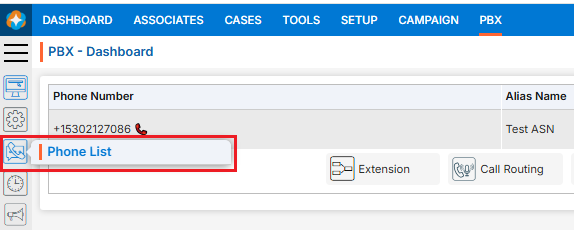
- The Phone List page will open.

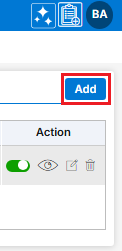
- There is Add New Phone button above the Action Column on the right side of the page.
- There are sub-functionalities of PBX: Extension, Call Routing, IVR, Inbound Routes, Outbound Routes and Time Condition.
- There are options to Enable/Disable (
 /
/ ), View (
  ), Edit (
 ) and Delete (
 ) the existing Phone Number under the Action column.
Action Column Functionalities:
Add Phone Number:
- Click Add button to add new Phone Number.
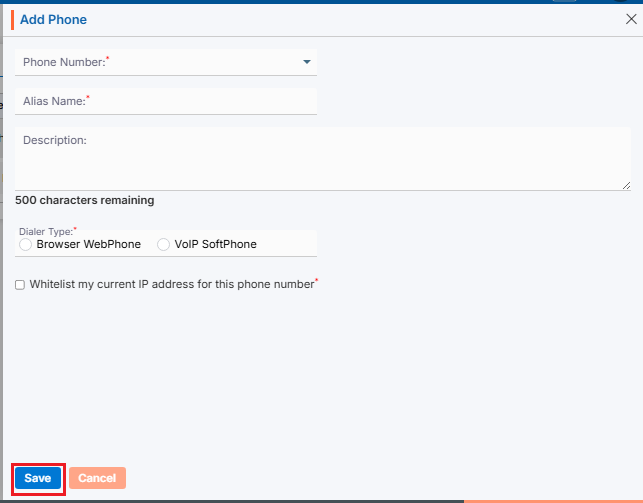
- A new pop-up window will open with tile Add Phone and display all the fields to add new Phone Number.
- To add new Phone Number, enter the following details:
- Phone Number: Choose phone number from the drop-down. This is what users can use for dashboard setup.
- Allias Name: Enter the clear, descriptive name. This is what users can identify the name of person related to Phone Number.
- Description: Optional explanation of the phone number purpose.
- Dialer Type: Choose option Browser WebPhone or VoIP SoftPhone.
- Mark check box for Whitelist my current IP address for this phone number field.
- Once all the details have been filled in and the selection is complete, click Save.
- The phone number is now listed and ready for use.

- To add new Phone Number, enter the following details:
Enable/Disable Phone Number:
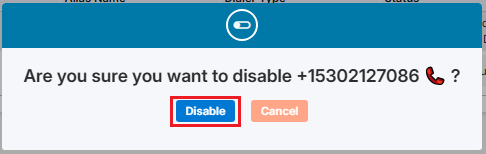
- Click Enable/Disable (/ )icon from the Action Column for the Phone Number you want to Enable/Disable.
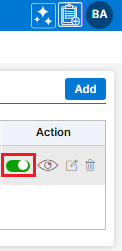
- It will ask for confirmation popup, click on Enable/Disable (/ ) button as per the requirement otherwise click on Close button. If the status is Enable ( ), user can Disable the status and if the status is Disable ( ), user can enable the status.
View Phone Number:
- Click View (
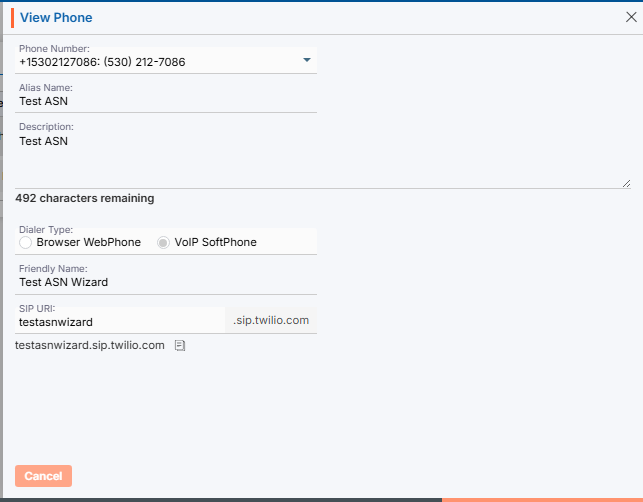
 ) icon from the Action Column for the Phone Number you want to view details of Phone Number.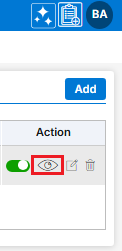
- A new pop-up window will open, displaying all the Phone Number details in view only mode.
Edit/Update Phone Number:
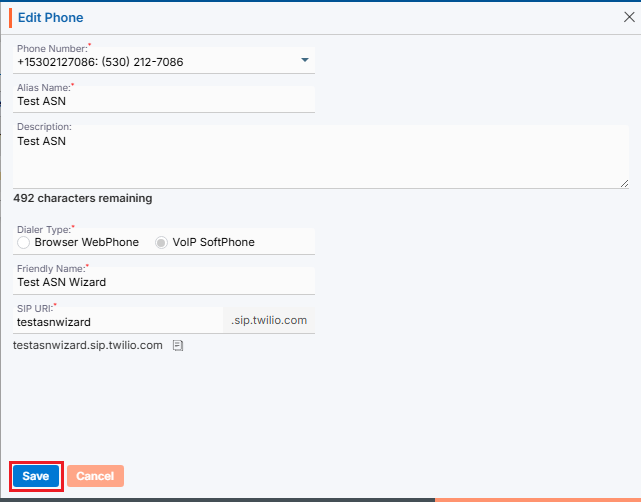
- To update the existing Phone Number from the available list, Click on Edit () icon from Action Column for the Phone Number you want to edit/update.
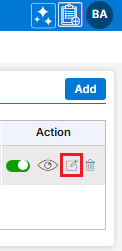
- Clicking Edit () icon will open the selected Phone Number in edit mode with title Edit Phone Number. Update the required field and click Save.
Delete Phone Number:
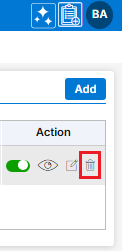
- To delete the unwanted existing Phone Number from the available list, click on Delete () icon from the Action Column for the Phone Number you want to delete.
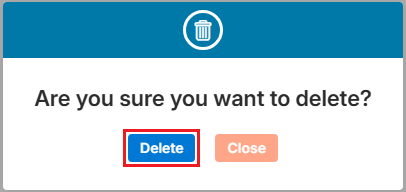
- It will ask for confirmation popup, click on Deleted button to delete the Phone Number otherwise click on Close button.
- On the same page there are following functionalities available:
- Extension: A unique internal number assigned to a user or device within the PBX system for internal communication. (More Info… Click Here)
- Call Routing: The process of directing incoming or outgoing calls to the appropriate extension, department, or destination. (More Info… Click Here)
- IVR: An automated menu system that lets callers choose options using keypad inputs or voice commands. (More Info… Click Here0
- Inbound Routes: Rules that determine how incoming calls are handled and where they are directed within the PBX. (More Info… Click Here)
- Outbound Routes: Rules that define how outgoing calls are sent through available phone lines or service providers. (More Info… Click Here)
- Time Condition: A feature that routes call differently based on predefined schedules, such as business hours, weekends, or holidays. (More Info… Click Here)
 0
0
 0
0