 - Knowledge Base
 An IP whitelist for a PBX feature in a CRM is a security mechanism that restricts communication between the PBX system and the CRM application to only those IP addresses that have been explicitly approved and configured in the whitelist.
When a PBX system attempts to communicate with the CRM, the CRM verifies the source IP address of the incoming request against the configured whitelist. If the IP address is included in the whitelist, the request is considered authorized and communication between the PBX and CRM is allowed. If the IP address is not listed, the request is rejected or blocked.
There are two ways to whitelist an IP address for a phone number:
- Whitelist your current IP address while adding a phone number: When adding a phone number, select the “Whitelist my current IP address for this phone number” checkbox. This will automatically whitelist your current IP address, allowing you to initiate calls using the Browser WebPhone or VoIP SoftPhone.
- Manually whitelist an IP address:
Navigate to Setup > Whitelist IP, select the required phone number, and add the IP address manually.
Steps to whitelist IP address manually:
- Sign in to AgentFront CRM.
- From the top menu, choose PBX.
- The PBX – Dashboard opens by default.

- Select Setup > IP Whitelist from left side panel.
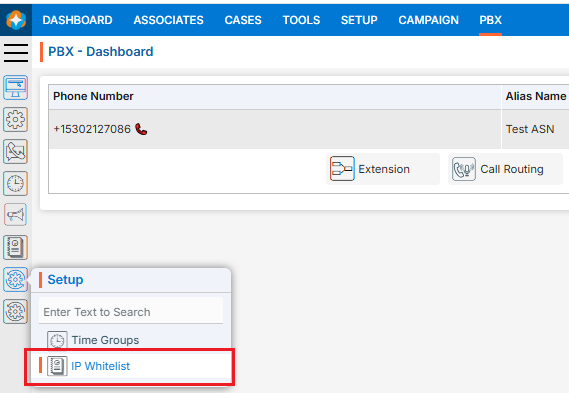
- The PBX – IP Whitelist page will open and display all available Phone Number added under PBX > Phone List.
This page will display the following fields:- Phone Number
- Alias Name
- Dialer Type
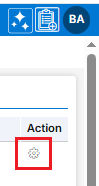
- There is Manage button above the Action Column on the right side of the page.

Manage Phone Number:
- Click Manage button to whitelist IP for the selected phone number.
- The PBX – IP Whitelist page for the selected phone number will open. If any IP addresses have already been whitelisted for this phone number, they will be displayed on this page.
This page will display the following fields:- IP Address
- Description
- Added Date
- There is Back (
 ) button on the top of the right side of the page.
 - There are following fields available to add new IP:
- IP Address (IPV4)
- Description
- After entering IP address and description there is Add Address button above the Action Column on the right side of the page.
- Enter the details and click on Add Address button.

- The IP address has been successfully whitelisted and is now displayed on this page. Users can now initiate calls using the Browser WebPhone or VoIP SoftPhone from this IP address.
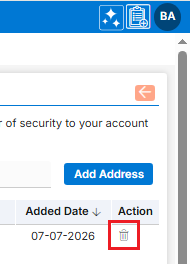
- There is only Delete (
 ) option available for the whitelisted IP under the Action column.

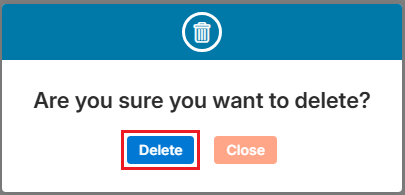
- To delete the unwanted existing whitelisted IP from the available list, click on Delete () icon from the Action Column for the IP you want to delete.
- It will ask for confirmation popup, click on Deleted button to delete the IP otherwise click on Close button.
- After completing the setup of IP Whitelist click on Back () button to go back to IP Whitelist Page.

 0
0
 0
0