Below are the steps for First-Time User Login Setup:
Account Creation/Registration: New user’s account can be created from the CRM by providing necessary details like name, email, and required information.
Verification: The system sends a verification email to the new user to ensure the user’s identity and activate his/her account using the temporary login details.
IP Authentication: The system will send an email to authorize the IP address for the new user.
Security Setup: Users set up strong security features such as password creation, two-factor authentication (2FA).
Account Creation/Registration:
Provide the required details like name, email etc… to the concerned admin/associate to create your account in the CRM.
Once your account has been created and approved by the concerned authorities, you will receive an email with your login credentials.
Verification:
Open the registered email provided for the new associate.
Locate the email containing the login credentials.
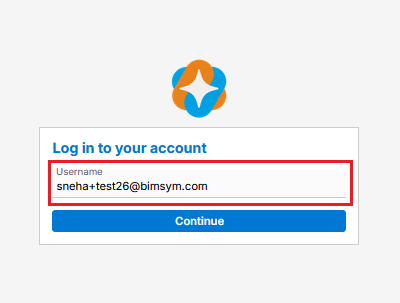
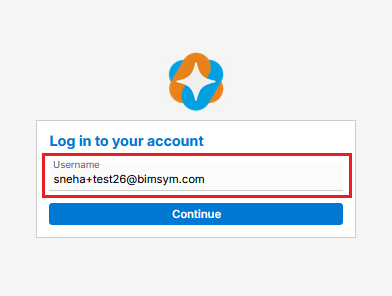
Enter the username provided in the registration email and click ‘Continue’.
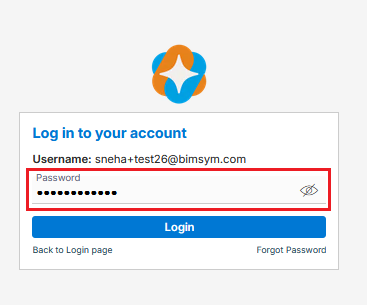
It will redirect to the password page.
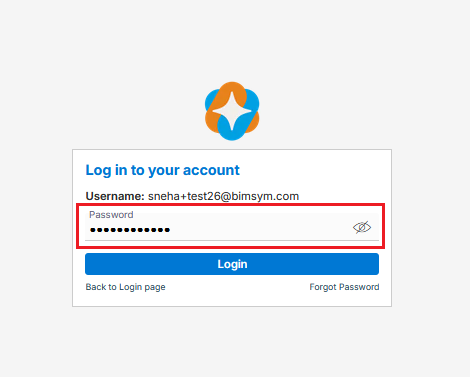
Enter the temporary password as per provided in the registration email and click on Login.
IP Authentication:
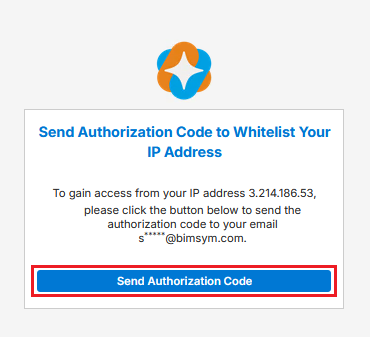
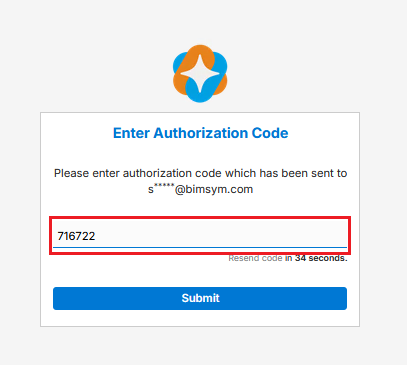
After entering the password, it will be redirected to the IP authentication page.
To authenticate your IP address, click on ‘Send Authorization Code’.
Authorization code will be sent to associate email address.
Take code from that email and enter.
Security Setup: Reset Password
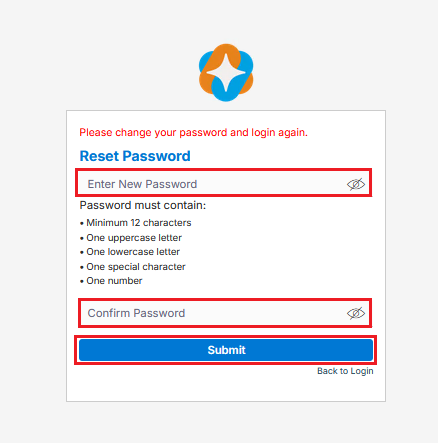
After entering the IP authentication code, it redirects to the password reset page.
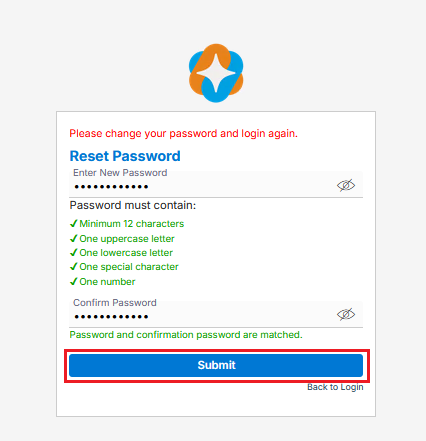
Enter a new password and confirm it, ensuring it meets the criteria mentioned.
After verifying that the passwords are identical, click “Submit”.
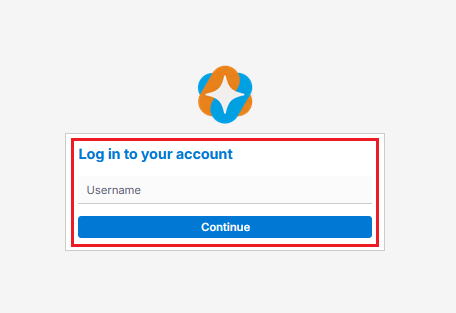
It will then redirect to the login page, where the user can log in with the new username and password.
Enter the username and click on continue.
On the next page enter the password and click on Login.
Security Setup: Two-Factor Authentication
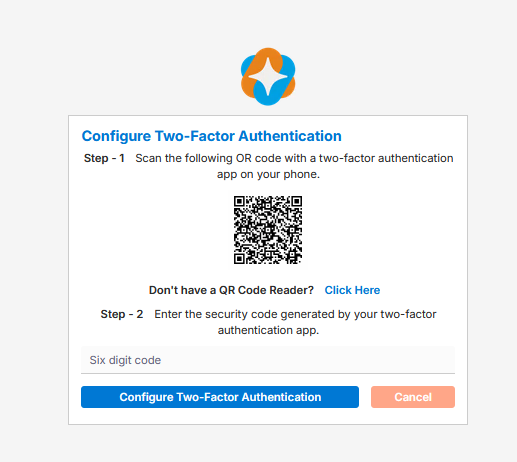
After login with new credentials, it will be redirected to configure two-factor authentication page.
Now, Two-Factor Authentication (2FA) is required.
For Two-Factor Authentication, download the Authenticator application on your mobile device. Then, use the application to scan the QR code displayed on the screen.
A six-digit code will be generated and displayed in the mobile application.
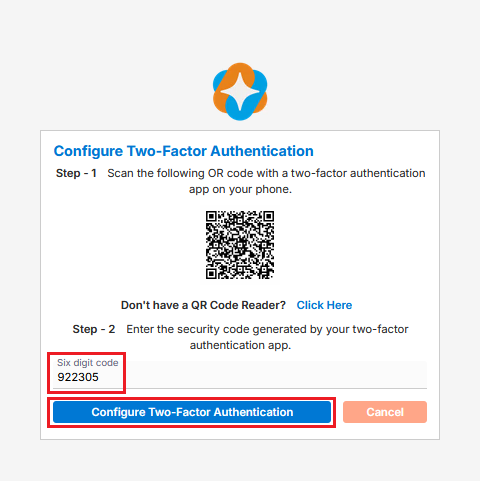
Enter the six-digit code from the application.
Then, click on ‘Configure Two-Factor Authentication’.
 - Knowledge Base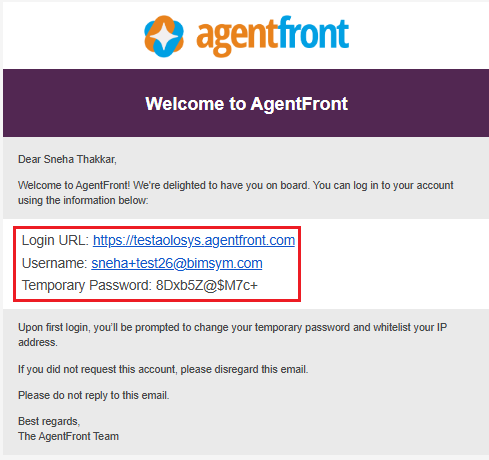
 0
0
 0
0