 - Knowledge Base
 A Status Flag is a marker or indicator used to track the current state or condition of a record, such as contact, lead, or member. It typically helps categorize or highlight specific statuses, allowing users to quickly identify and manage records based on their status.
Setup Status Flag
- Sign in to AgentFront CRM.
- From the top menu, choose Setup.
- In the left-side panel, select System Setup.
- Under System Setup, click Status Flag.
- Note: The user can also access this page by typing Status Flag in the Enter Text to Search bar.
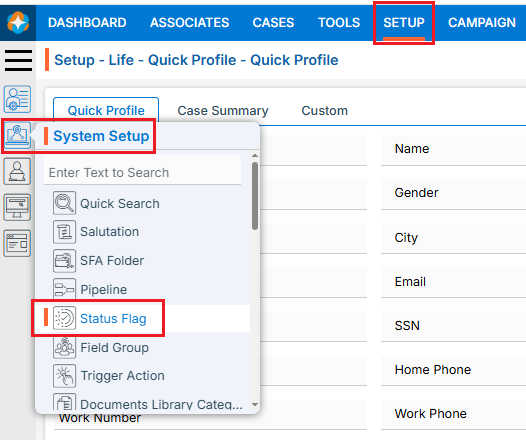
- Note: The user can also access this page by typing Status Flag in the Enter Text to Search bar.
- The Status Flag page opens with a list of existing Status Flags.
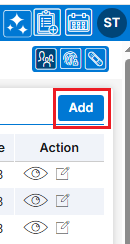
- There is an Add button above the Action Column on the right panel to add new Status Flag.
- There are options to View (
 ), Edit (
 ) andDelete (
 ) the existingStatus Flag under the Action column.
Note: If any Status Flag is used or implemented, the deleting options will not be available for that Status Flag, meaning it cannot be deleted. - Also, users can Rearrange (
 ) Status Flag according to their requirements.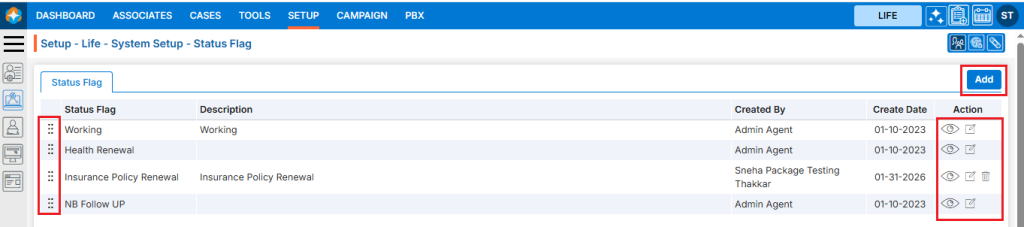
Add new Status Flag:
- Click the Add button to add new Status Flag.
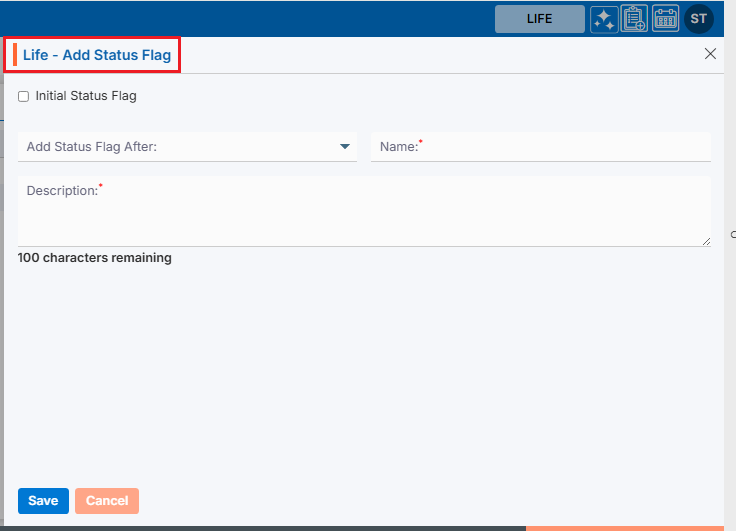
- The Add Status Flag window will open, allowing the user to enter the required details to create a new Status Flag.
- Initial Status Flag: Select this checkbox to keep the Status Flag at the top of the list.
- Add Status Flag After: The user can choose an existing Status Flag from the drop-down menu, and the new Status Flag will be added immediately after the selected status flag, allowing it to be placed in the desired order.
- Name: Enter the clear, descriptive name. This is what users will see under the Cases tab.
- Description: Optional explanation of the Status Flag’s description.
- Click Save button. The Status Flag is now listed and ready to use.
View Status Flag:
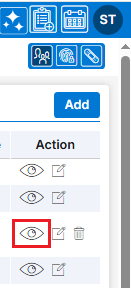
- Click View () icon from the Action Column for the Status Flag you want to view details of Status Flag, new page will open with all details of Status Flag.
View Status Flag in Cases tab:
- Navigate to the Cases tab from the top menu.
- Cases List – All Cases page will open by default.
- Open any case from all cases lists.
- The dashboard for the selected case will open by default.
- Click the ‘Quick Profile’ tab from the dashboard.
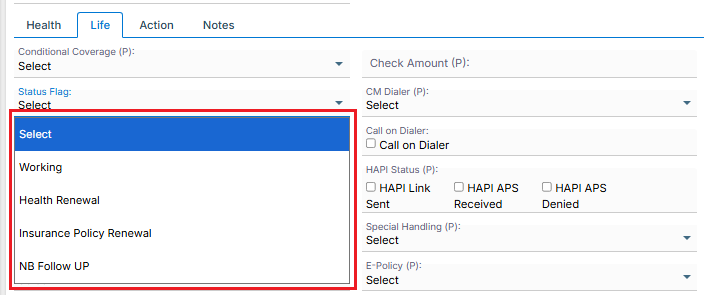
- Navigate to the ‘Life’ tab below the ‘Beneficiary’ section to view the drop-down of available Status Flags.
Update Status Flag:
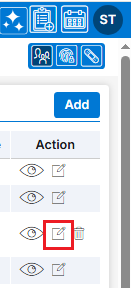
- To update the existing Status Flag from the available list, Click on Edit () icon from Action Column for the Status Flag you want to edit/change.
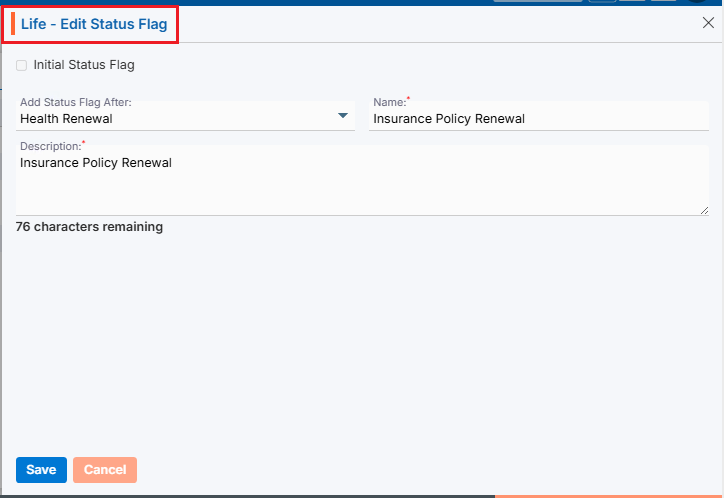
- Clicking Edit () icon will open the selected Status Flag in edit mode with title Edit Status Flag. Update the required details and click Save.
Delete Status Flag:
- To delete the existing Status Flag from the available list, click on Delete () icon from the Action Column for the Status Flag you want to delete.
Note: If any Status Flag is used or implemented, the deleting options will not be available for that Status Flag, meaning it cannot be deleted.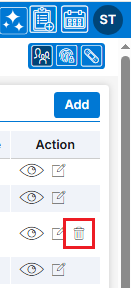
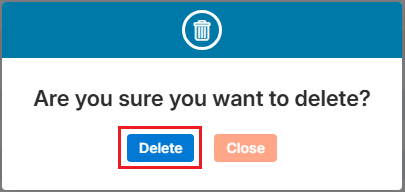
- It will ask for confirmation popup, click on Deleted button to delete Status Flag otherwise click on Close button.
Re-arrange Status Flag:
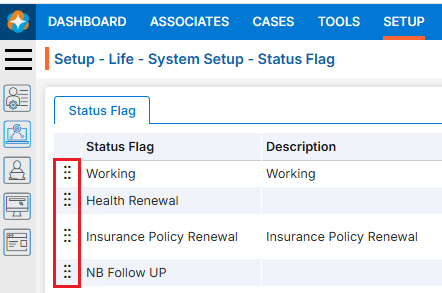
- Status Flags can be rearranged () to set their priority in the search results.
- Hover over the Re-arrange () icon at the beginning of a Status Flag.
- Click and drag the Re-arrange () icon to move up or down the Status Flag to the desired position, then drop it to save the new order.
 0
0
 0
0