 - Knowledge Base
 The export feature in a CRM system enables users to extract, export and download the data in multiple formats (e.g., CSV, XML, JSON). This data, which may include customer information, can then be utilized for analysis, reporting, or sharing across different purposes.
Steps to Export Multiple Records
- Sign in to AgentFront CRM.
- From the top menu, choose Tools.
- In the left-side panel, select Export.
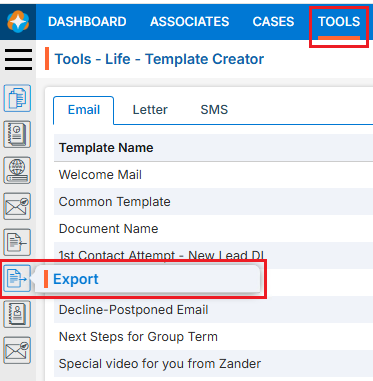
- A new page titled ‘Tools – Life – Export’ will open, featuring the ‘Export’ tab with following steps to complete the process:
- Select the date range
- Select SFA Folder
- Select the fields
- Select Format
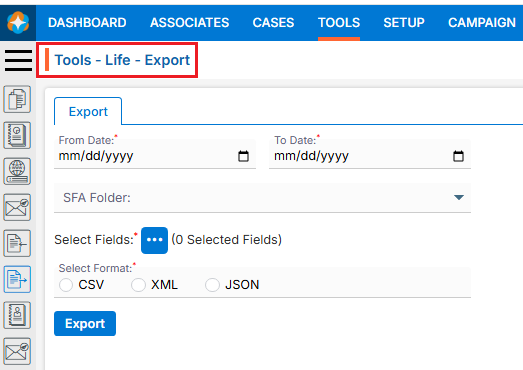
- Select the date range:
- Select the date range for which you want to export data.
Note: System will allow to select maximum of 31-days date range.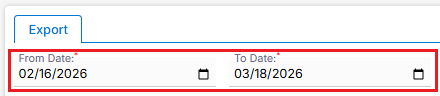
- Select the date range for which you want to export data.
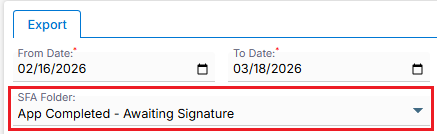
- Select SFA Folder:
- On the same page, the next option is for selecting the SFA folder.
- Choose the SFA folder from the dropdown from which you want to export the data.
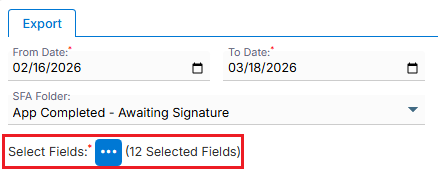
- Select Fields:
- On the same page, the next option is for selecting Fields.
- Click on 3 dots blue color Icon.
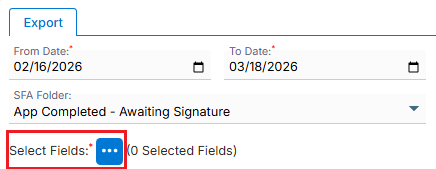
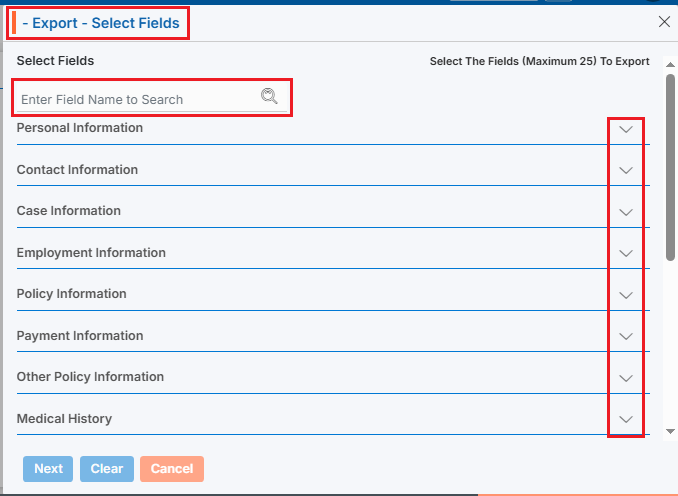
- A pop-up window titled ‘Export – Select Fields’ will open.
- The fields will be listed in sections as per available in the application.
- Click on the down arrow to reveal the fields for selection.
- Additionally, the user can search for field names based on their requirements, and the system will display the corresponding results.
- Select the field names whose data needs to be exported in the file.
Note: Maximum 25 fields can be selected. - Click ‘Next’ to proceed.
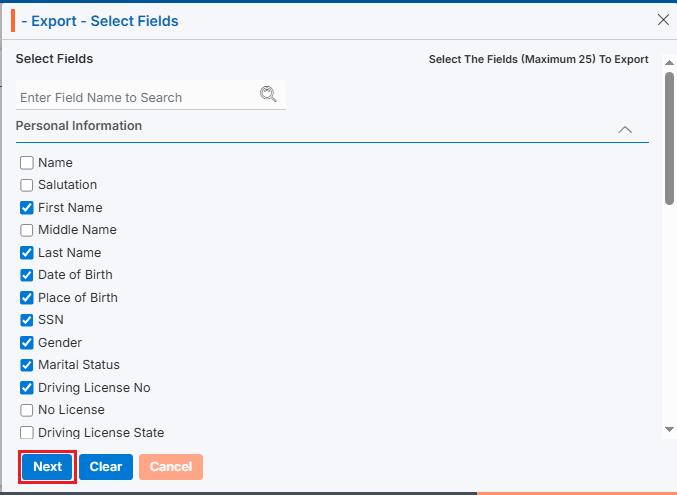
- Clicking on ‘Next’ opens a new page listing the selected fields.
- The sequence of the field list can be re-arranged using the six-dot (
 ) icon.
 - Hover over the Re-arrange () icon at the beginning of a field name.
- Click and drag the Re-arrange () icon to move up or down the fields to the desired position, then drop it to save the new order.
- Click on the ‘Save’ button to proceed.
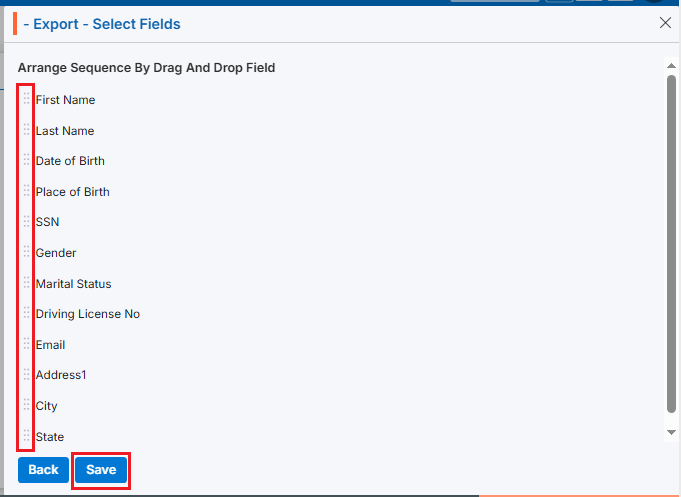
- Clicking the ‘Save’ button will display the number of selected fields next to the three-dot icon.
- Select Format:
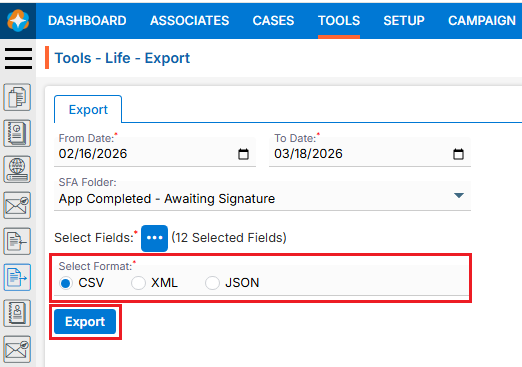
- On the same page, the next option is for selecting format.
- There are three available formats for exporting the file: CSV, XML, and JSON. Select the desired format and click the ‘Export’ button to proceed.
- The file will be exported, and user can save in the desired location.
 0
0
 0
0