 - Knowledge Base
 Display is used to create specific views of the Cases Listing. Users can set a maximum of 5 displays, choosing from the available fields and apply them to the listing as needed.
- Sign in to AgentFront CRM
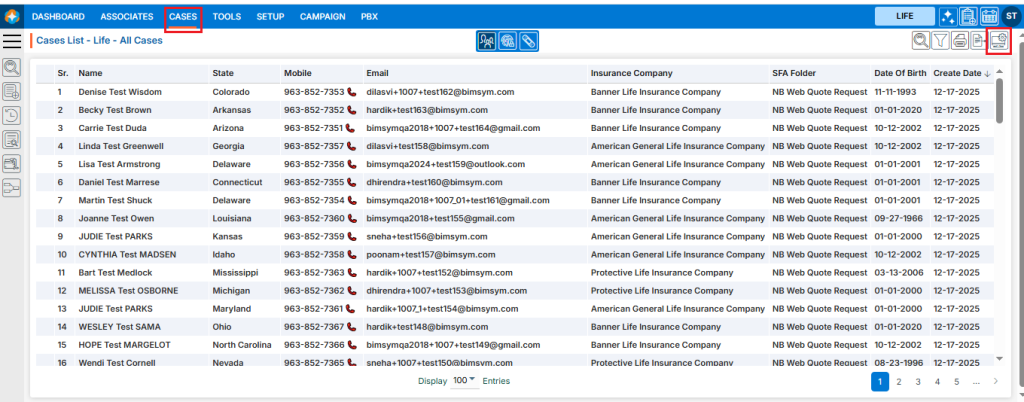
- From the top menu, choose CASES
- Cases list will open by default
- Click the Display icon in the top right corner
- A new pop-up window named ‘Display’ will open
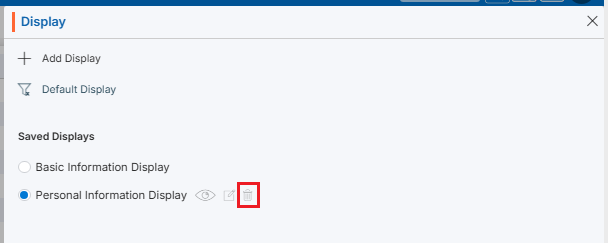
- Existing displays will be listed under Saved Displays
- There is an Add Display link with (+) icon on top of the page
- Also, there are options to View (
 ), Edit (
 ) and Delete (
 ) the existing display for each one, to view those options hover over the display name; the system will display the View (), Edit (), and Delete () options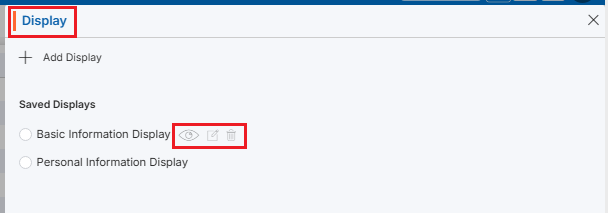
Add Display
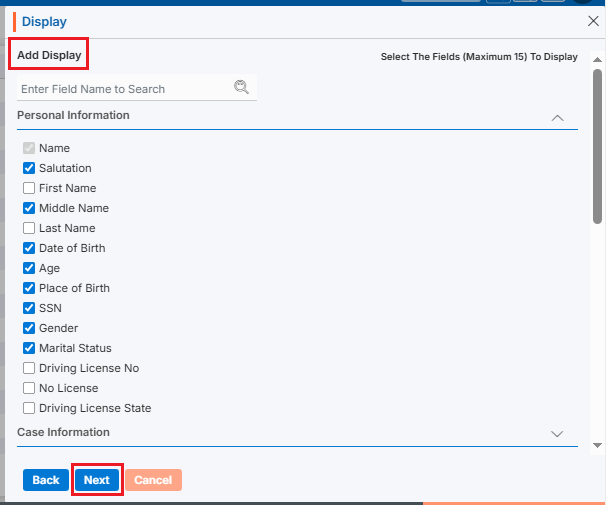
- Click on ‘Add Display‘ to add a new display to the system. (Maximum 5 displays can be created)
- A new page will open, select the fields from group according to the requirements and click on Next. (Maximum 15 fields can be selected)
- Next Page: Add Display – Selected Fields
- Arrange Sequence: Arrange the fields sequence for display
- Enter Display Name: Enter the clear, descriptive name. This is what users can identify the purpose of the Display
- ‘Save & Apply’ and ‘Save’ options are available. The Save option creates the display only, while Save & Apply saves the display and will apply it to the list
- Click the Save & Apply
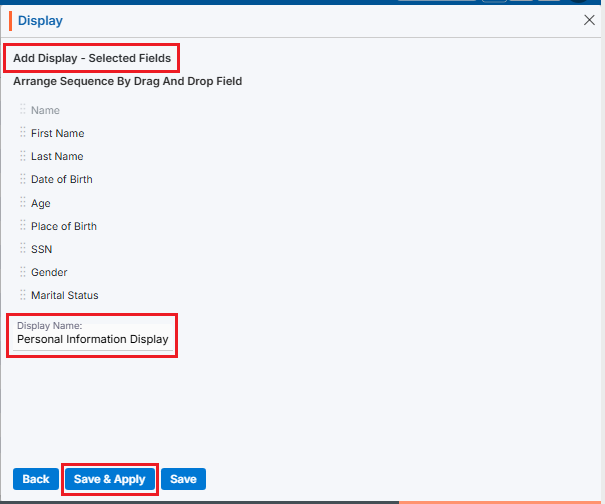
- The new display will be saved in the system and applied to the listing

View Display
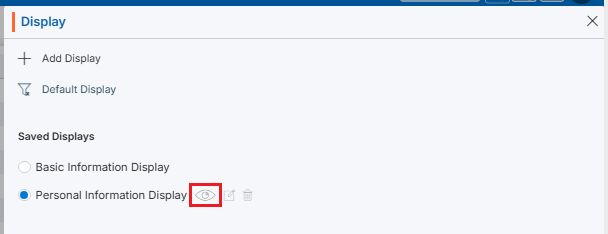
- To view the existing display, select the display and click ‘View Display’ () from the available options
Apply Display
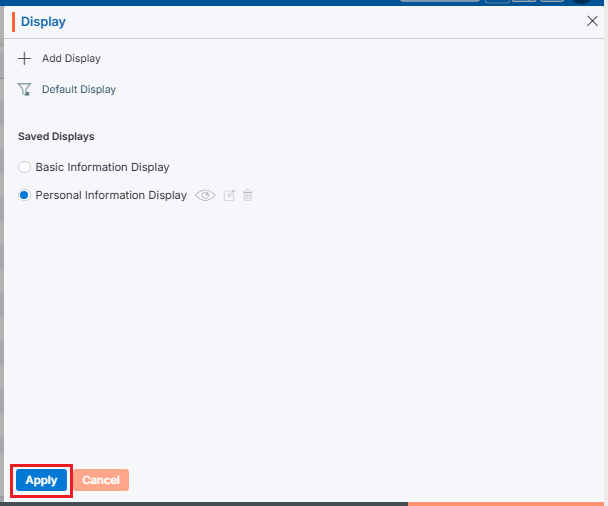
- To apply the display from existing display, select the display and click ‘Apply’ button
Reset Display
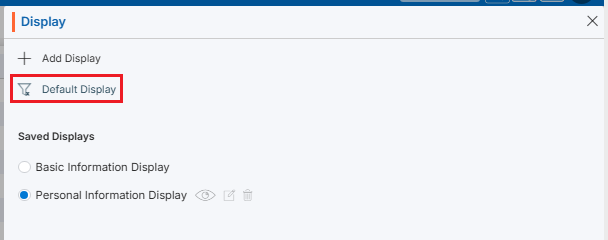
- If any display is already applied to the listing and user wants to reset the display (System Generated – Default Display) click the ‘Default Display’ link
Edit Display
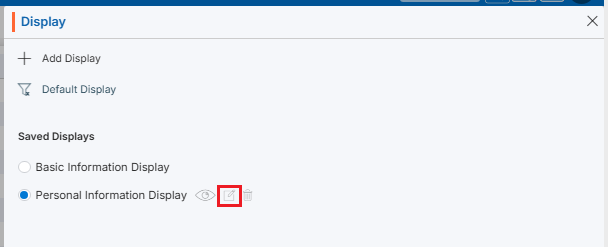
- To update the existing display, select the display and click ‘Edit Display’ () from the available options
Delete Display
- To delete any existing display, select the display and click ‘Delete Display’ () from the available options
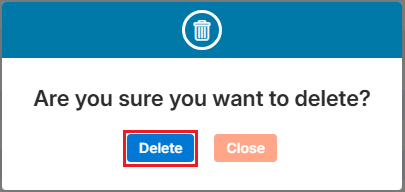
- The system will ask for confirmation. Click Delete to proceed
 0
0
 0
0