 - Knowledge Base
 Salutation is a field within the CRM where administrators can configure and store standard prefixes like “Mr.”, “Ms.”, “Dr.”, “Mrs.”, “Prof.”, etc., that are applied to contacts or leads based on their title. This ensures that automated communications are personalized and respectful, using the appropriate formal address for everyone.
- Sign in to AgentFront CRM
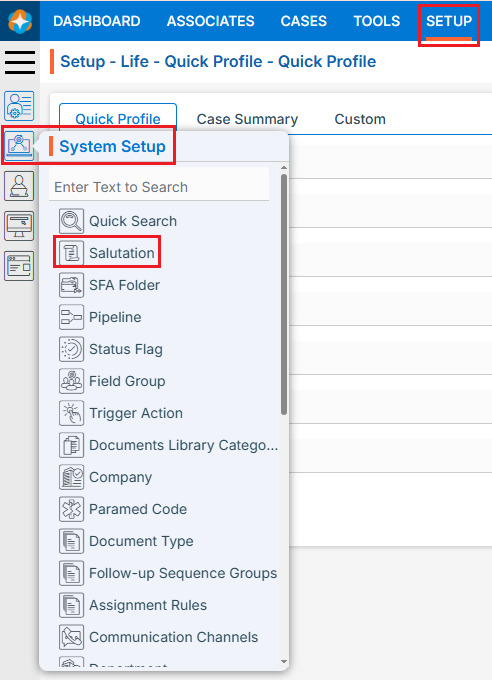
- From the top menu, choose Setup
- In the left-side panel, select System Setup
- Under System Setup, click Salutation
- Note: The user can also access this page by typing Salutation in the “Enter Text to Search” bar
- The Salutation page opens with a list of available existing salutations
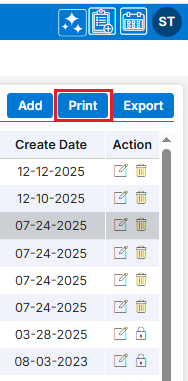
- There is an Add, Print and Export buttons above the Action Column on the right pane to add new Salutation
- Also, there are options to Edit (
 ) and Delete (
 ) the existing Salutation under the Action Column on the right pane
Note: If any salutation is used or implemented, the deleting options will be locked for that salutation, meaning it cannot be deleted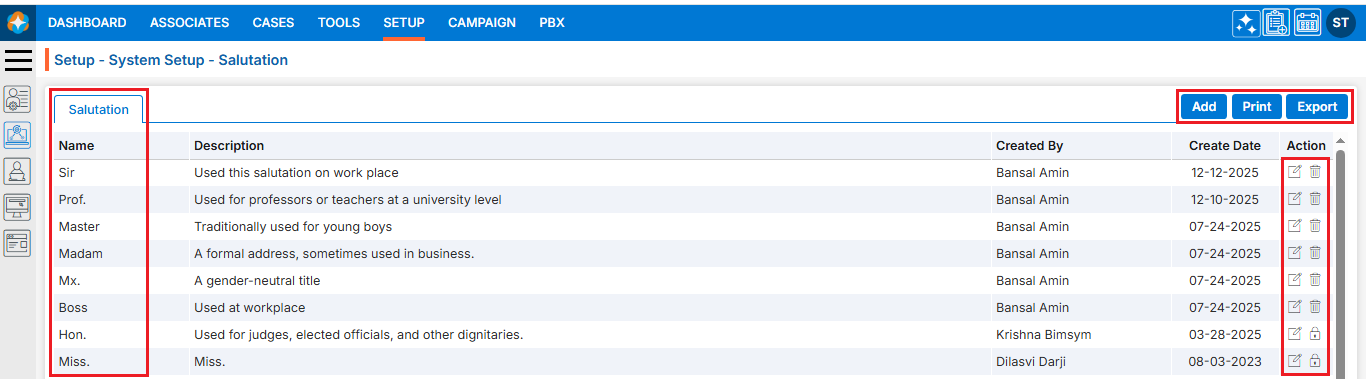
Add New Salutation:
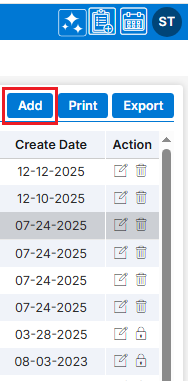
- Click the ‘Add’ button at the top right of the list to add new Salutation
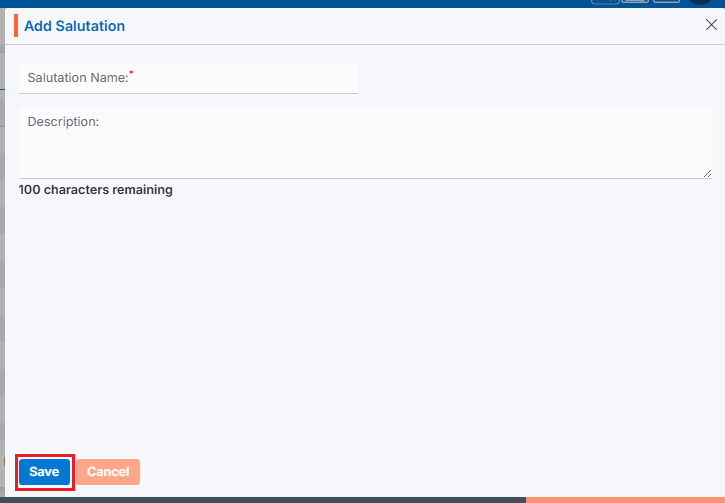
- It will open page to add new Salutation with title Add Salutation
- Salutation Name: Enter a clear, descriptive name. This is what users will see under the Personal Information tab
- Description: Optional explanation of the Salutation’s description
- Click on Save. The Salutation is now listed and ready for use
Print Salutation
- Click the ‘Print’ button at the top right of the list to print the Salutation list
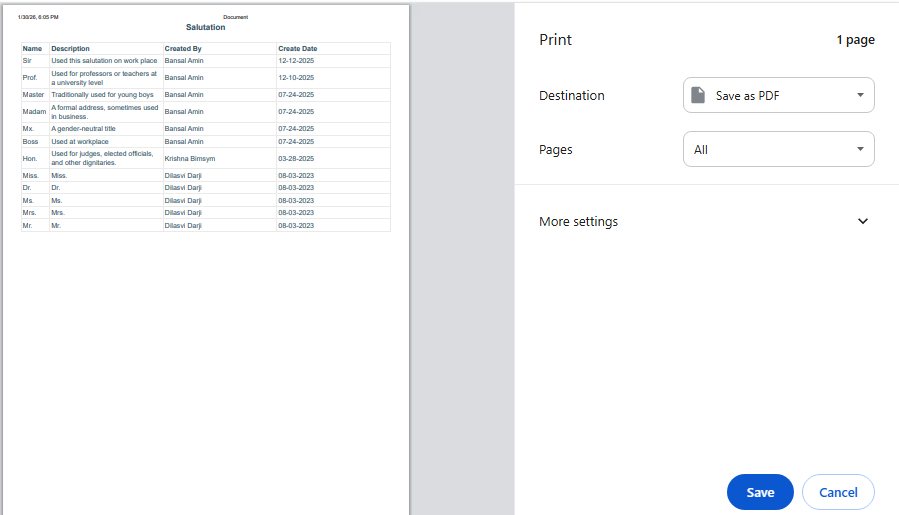
- Clicking on ‘Print’ will open a new page and allow the user to print the Salutation listing
Export Salutation
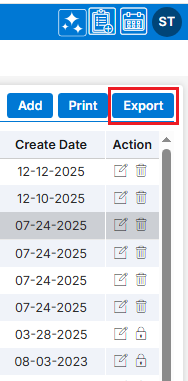
- Click the ‘Export’ button at the top right of the list to export the Salutation listing
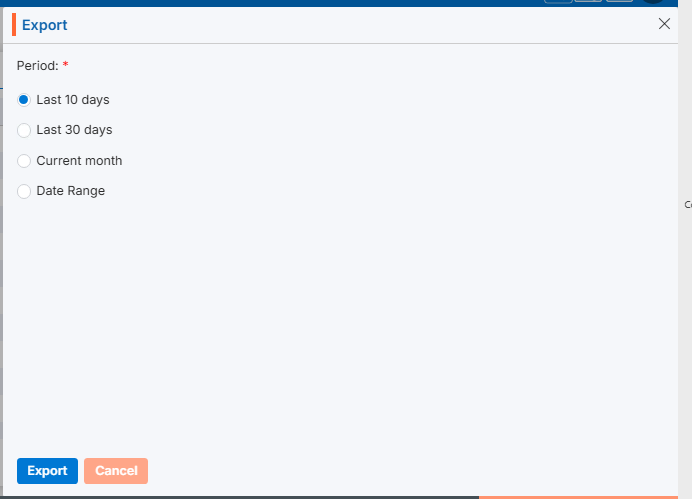
- Clicking on ‘Export‘ will open a new page and allow users to export the Salutation listing for the selected period
View Salutation in Cases tab
- Navigate to the Cases tab from the top menu
- Cases List – All Cases page will open by default
- Open any case from all cases lists
- The dashboard for the selected case will open by default
- Click the ‘Information’ tab from the dashboard
- Navigate to the ‘Default’ tab under the ‘Personal’ tab to view the drop-down of available Salutations
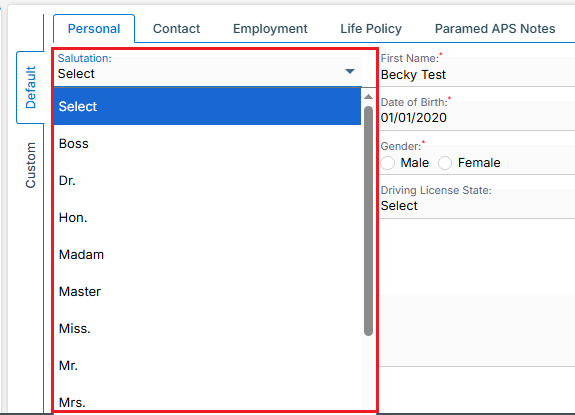
Update Salutation:
- To update the existing Salutation from the available list, click on Edit() icon from the Action Column for the salutation you want to edit/change
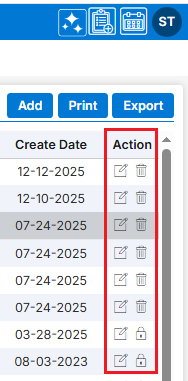
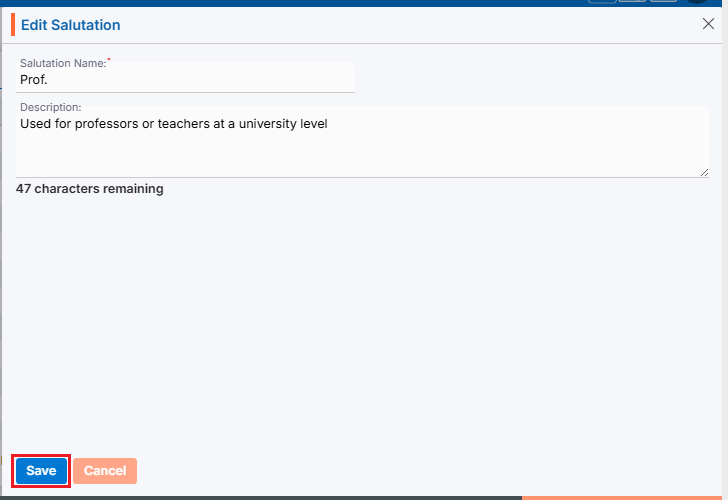
- Clicking the Edit () icon will open the selected Salutation in edit mode with title Edit Salutation
- Update the required details and click Save
Delete Salutation
- To delete the existing Salutation from the available list, click on Delete () icon from the Action Column for the Salutation you want to delete
Note: Deletion is restricted if the salutation is referenced elsewhere, until those references are removed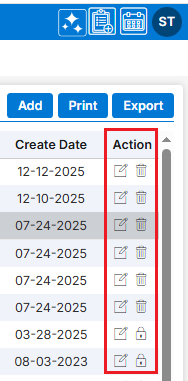
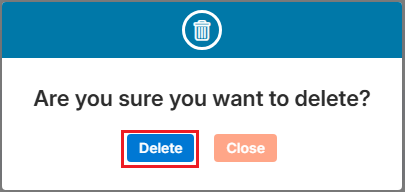
- It will ask for confirmation popup, click on Deleted button to delete Salutation otherwise click on Close button
 0
0
 0
0