 - Knowledge Base
 A Case Summary Fields under a quick profile typically refers to the key fields or sections in a case summary that capture important information about a case. These fields serve the purpose of providing a quick, organized summary of the case for easy reference.
Case Summary Setup
- Sign in to AgentFront CRM
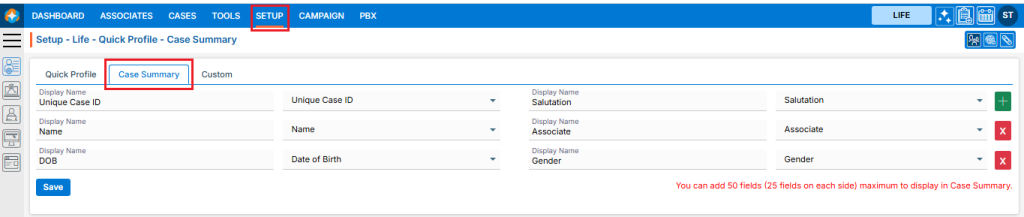
- From the top menu, choose SETUP
- Setup > Quick Profile > Cases Quick Profile setup page will open by default
- Click on Case Summary
- This page will display the default Case’s Case Summary setup, including the field display name and the selected field from the dropdown
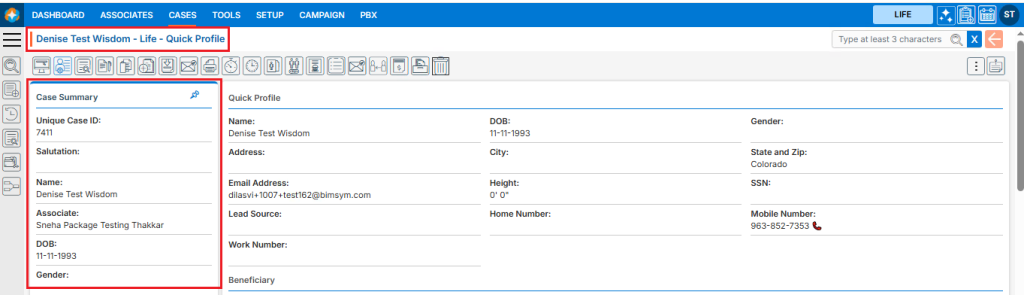
- This Case Summary setup will be reflected in CASES > Individual Case > Left Side of the page
- Users can add a new field by using the (+) sign, which is displayed in green
- Users can remove the existing field by using the (x) sign, which is displayed in red color
- Users can also edit the existing field(s) that have already been set up
- Once the add/edit action has been taken, click on ‘Save‘
- This updated case summary setup will be reflected in CASES > Individual Case > Case Summary
Restore Case Summary Setup
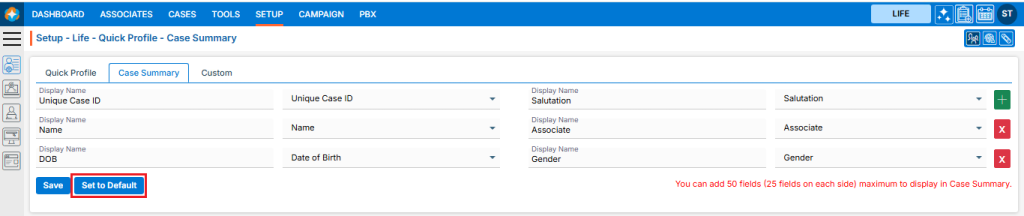
- The ‘Set to Default‘ option will restore the default case summary setup and will be reflected in CASES > Individual Case > Case Summary
 0
0
 0
0