Home   /   Tools   /   Template Creator

Template Creator > Letter Sample

Letter Templates let you store frequently used letters in a single, reusable format. Once created, the same letter template can be used in system to ensure consistent wording and style.
You can use Letter Templates in (Base on the access rights):

  • Case > Print Letters
  • Case > Send Email

Create Letter Template:

  1. Sign in to AgentFront CRM.
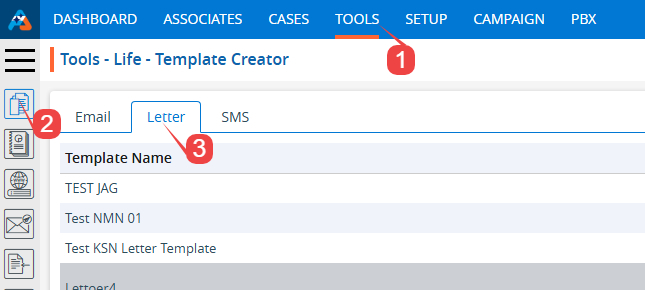
  2. From the top menu, choose Tools.
  3. In the left sidebar, select Template Creator.
  4. It will open Template Creator with multiple tab (Based on the access rights)
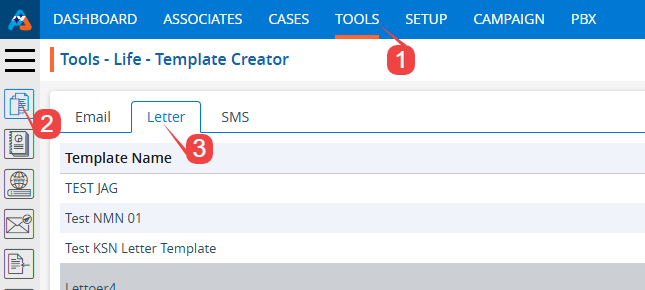
  5. Click on Letter tab
  6. It displays the list of available/created Lettes.
  7. Click on ‘Create Template Creator’ icon from the Top Right side of the list.
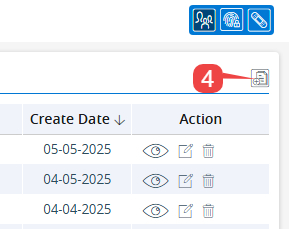
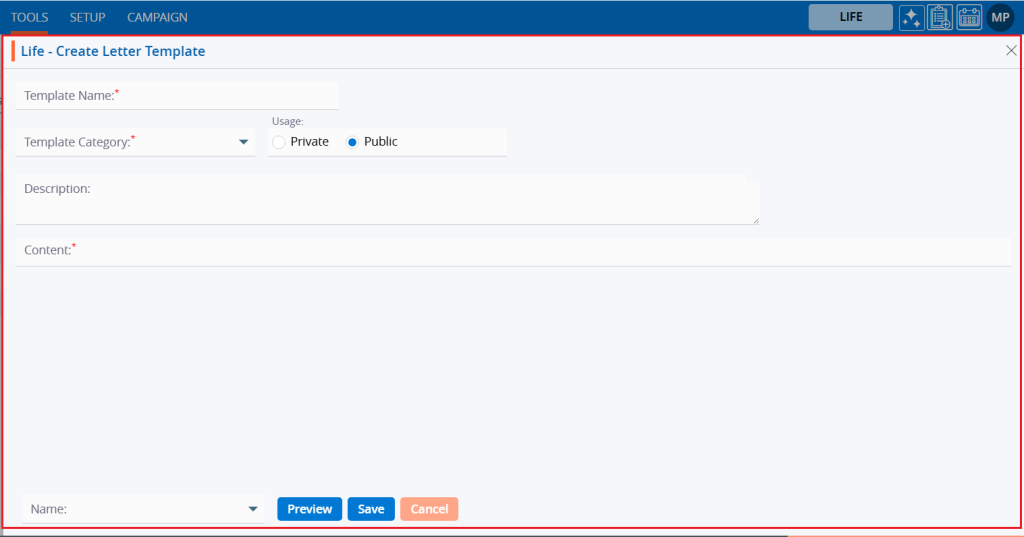
  8. It will open page to create new letter template
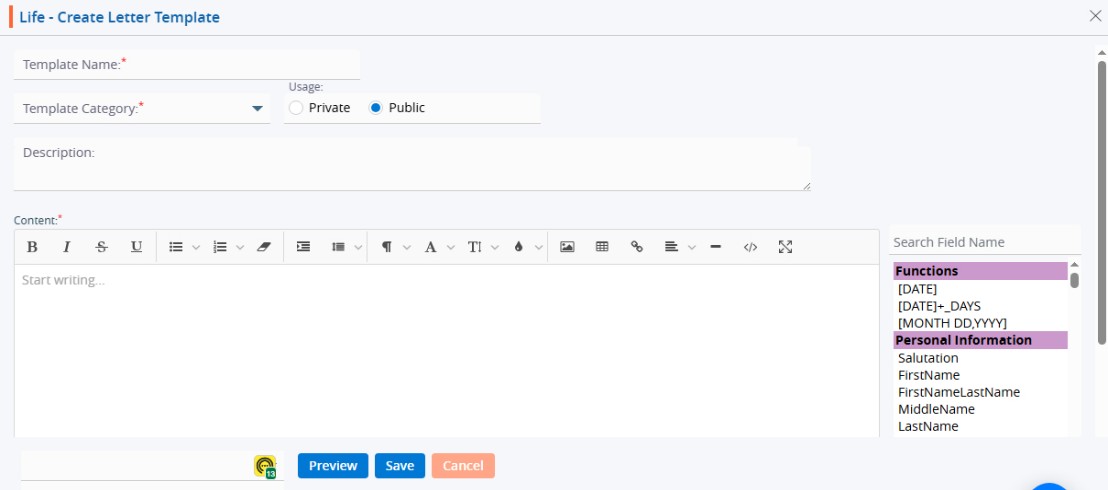
  9. To create new letter template, enter the following details:

    1. Template Name: Enter clear, descriptive name. This is what users will see when they select a letter template from other places of the application.
    2. Template Category: Choose from the drop-down list. (Categories can be managed in Setup → System Setup → Template Category.)
    3. Usage: Option to select Public/Private. (Default will be Public).
      1. Public: Visible to anyone with access.
      2. Private: Visible only to the creator.
    4. Description: Optional explanation of the template’s purpose.
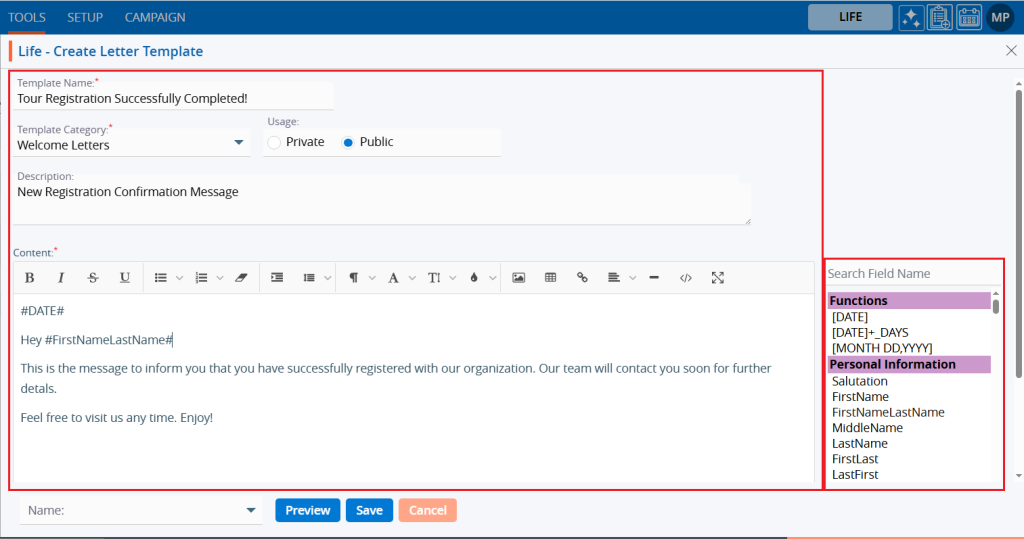
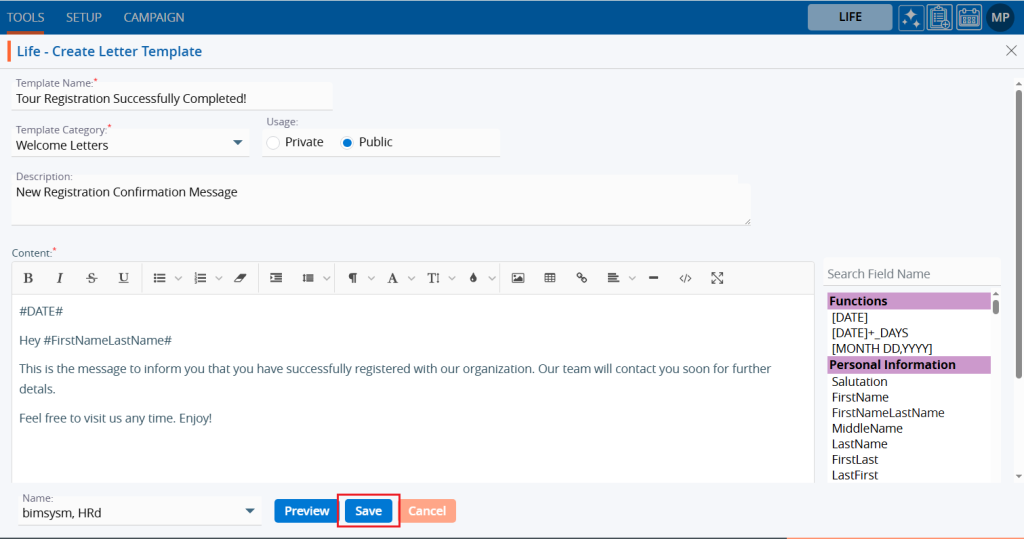
    5. Content: Write or paste the letter text. A rich-text editor appears when you click in the box. Use placeholders from the panel on the right to insert dynamic data—place the cursor where the value should appear, then click the required field.
    6. Preview the letter: choose a sample person, then click Preview to verify that letter format and placeholders resolve correctly.
    7. Click Save. The template is now listed and ready for use.

Update Letter Template:

  1. Sign in to AgentFront CRM.
  2. From the top menu, choose Tools.
  3. In the left sidebar, select Template Creator.
  4. It will open Template Creator with multiple tab (Based on the access rights)
  5. Click on Letter tab
  6. It displays the list of available/created Lettes.
  7. From the list click on Edit (
    ) icon from the Action column for the letter you want to edit/change
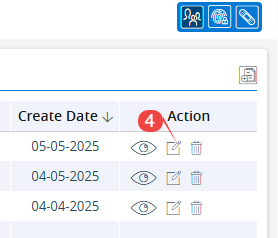
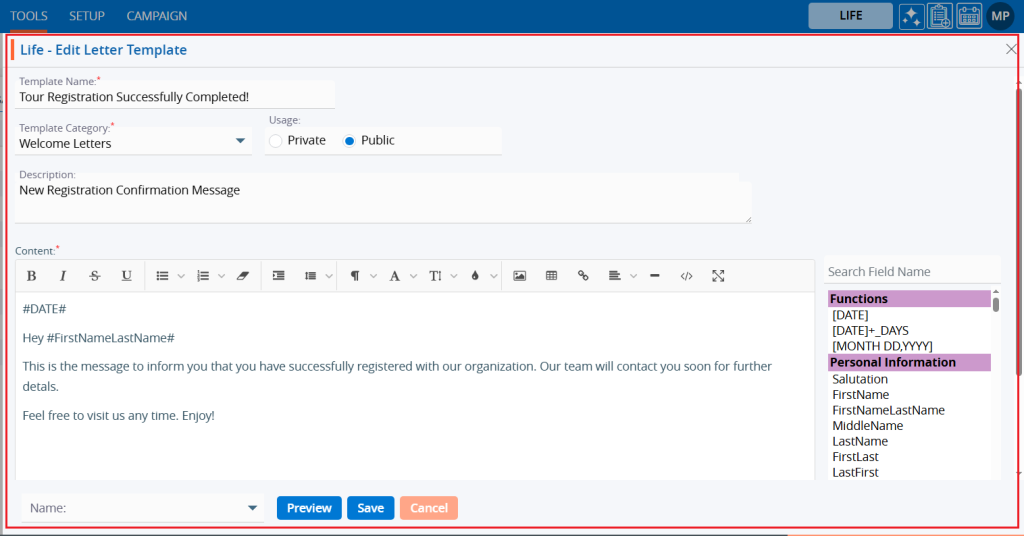
  8. It will open the selected letter in edit mode.
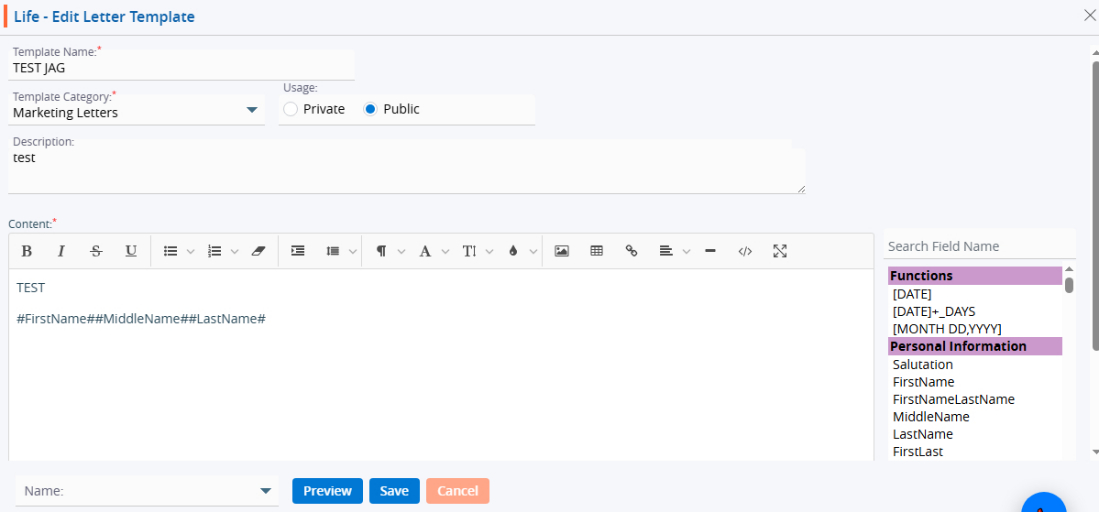
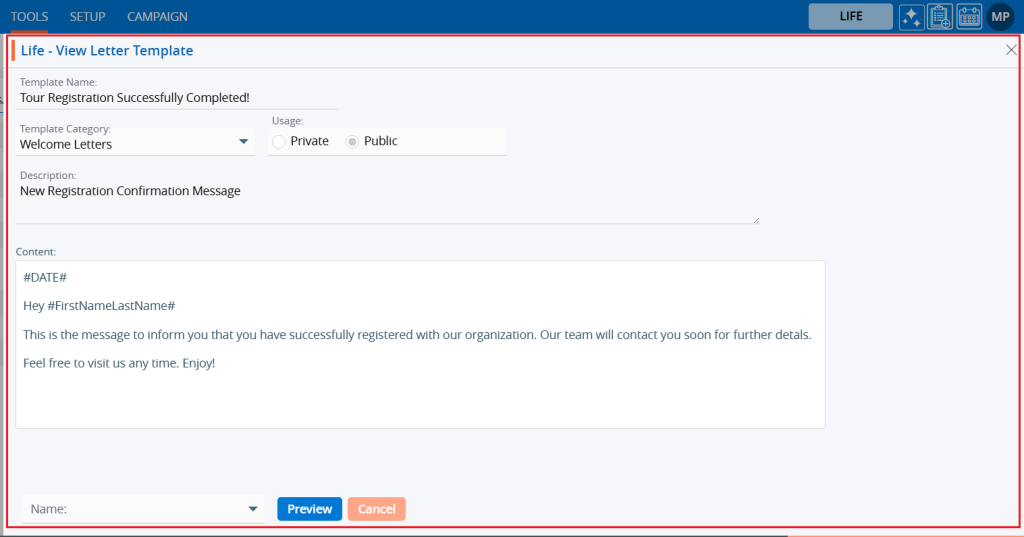
  9. You can make the require edit in the below fields values of the open letter templates
    1. Template Name: Enter clear, descriptive name. This is what users will see when they select a letter template from other places of the application.
    2. Template Category: Choose from the drop-down list. (Categories can be managed in Setup → System Setup → Template Category.)
    3. Usage: Option to select Public/Private. (Default will be Public).
      1. Public: Visible to anyone with access.
      2. Private: Visible only to the creator.
    4. Description: Optional explanation of the template’s purpose.
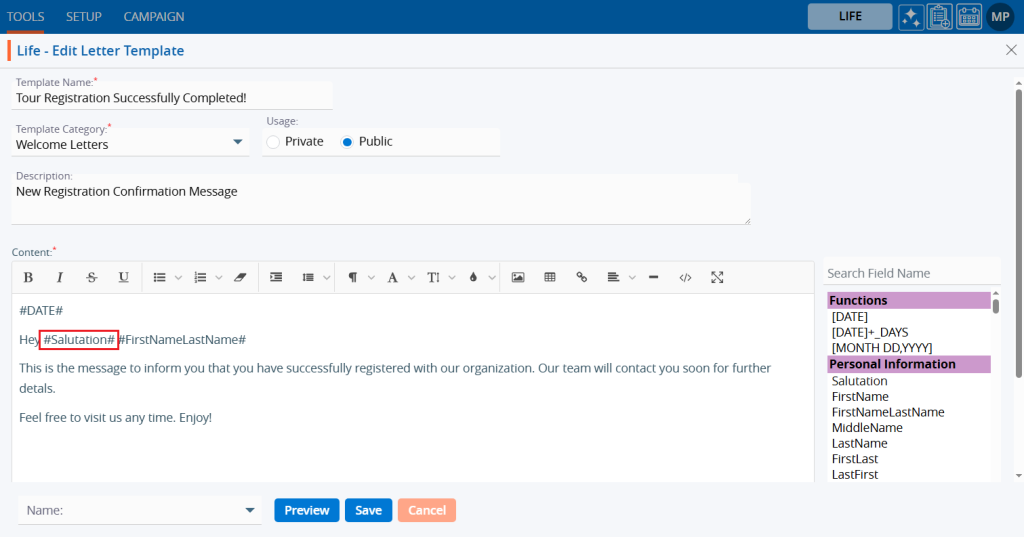
    5. Content: Write or paste the letter text. A rich-text editor appears when you click in the box. Use placeholders from the panel on the right to insert dynamic data—place the cursor where the value should appear, then click the required field.
    6. Preview the letter: choose a sample person, then click Preview to verify that letter format and placeholders resolve correctly.
    7. Click Save. The template is now updated and ready for use.

Delete Letter Template:

  1. Sign in to AgentFront CRM.
  2. From the top menu, choose Tools.
  3. In the left sidebar, select Template Creator.
  4. It will open Template Creator with multiple tab (Based on the access rights)
  5. Click on Letter tab
  6. It displays the list of available/created Lettes.
  7. From the list click on Delete (
    ) icon from the Action column for the letter you want to delete.
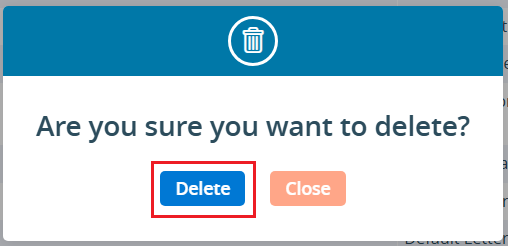
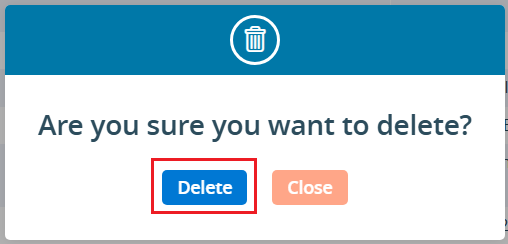
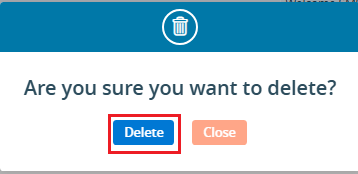
  8. It will ask for confirmation in popup, click on Delete button to delete letter otherwise click on Close button.
  9. Important: If the template is referenced elsewhere (for example, in a Trigger), deletion is blocked until those references are removed.

Multi-product tip

If your login has access to multiple products, be sure to select the correct product from the product icons in the top-right corner before creating, editing, or deleting templates.

3
0

Template Creator > Letter

The Letter Template tool is used to create templates for quick letter sending.

The following are the steps for creating letter templates:

1. Navigate to the ‘TOOLS’ tab. The Tools tab will open with the ‘Template Creator’ tab displayed by default. Click to Expand

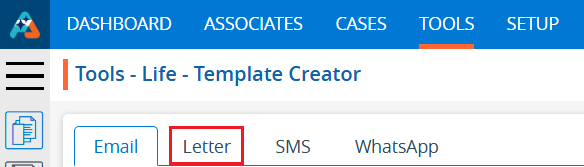
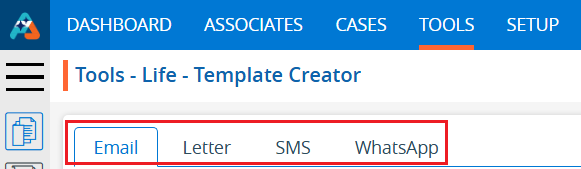
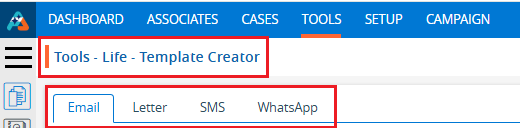
2. The user will see the ‘Tools – Template Creator’ with four different tabs: Email, Letter, SMS, and WhatsApp.

3. The ‘Email’ tab opens by default in the Document Editor, displaying a list of existing email templates along with details.

4. Click on the ‘Letter’ tab. Click to Expand

5. By clicking on the ‘Letter’ tab, a new list will open and display a list of existing letter templates, with details including Template Name, Category, Usage, Created By, Created Date and Action. Click to Expand

6. Click on the ‘Create Letter Template’ icon to create a new letter template. Click to Expand

7. A pop-up window will open with fields for Template Name, Template Category, Subject, Usage (default selected as Public), Description and Content. Click to Expand

8. Fill in the fields to create an Letter template. Also, on the right-hand side, there is a list of fields that will fetch details for the message. Search for field names to use in the templates. Double-clicking on the field will add it to the content area. For example, users can include fields such as FirstNameLastName and Date. Click to Expand

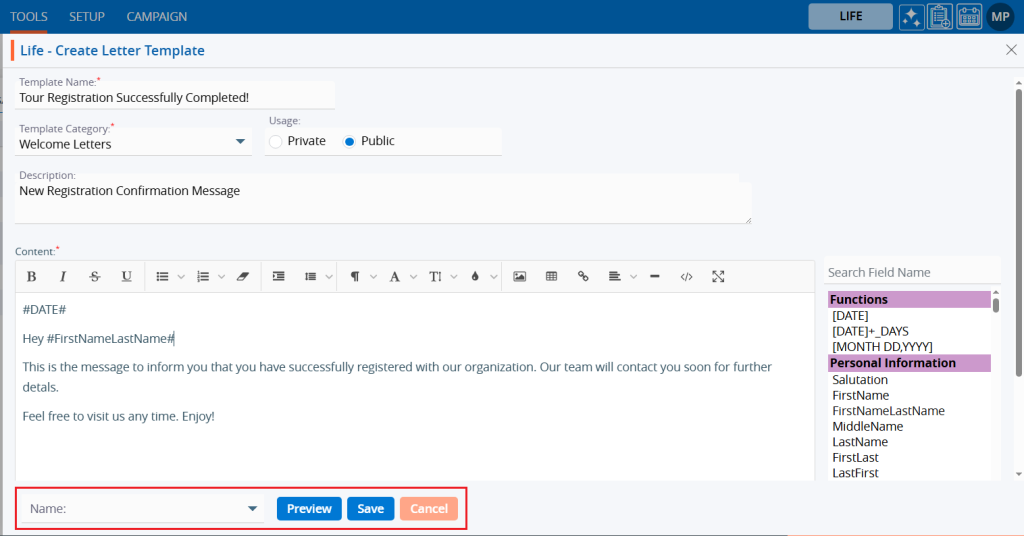
9. At the bottom, there is a dropdown menu with the names of associates and three buttons: Preview, Save, and Cancel. Click to Expand

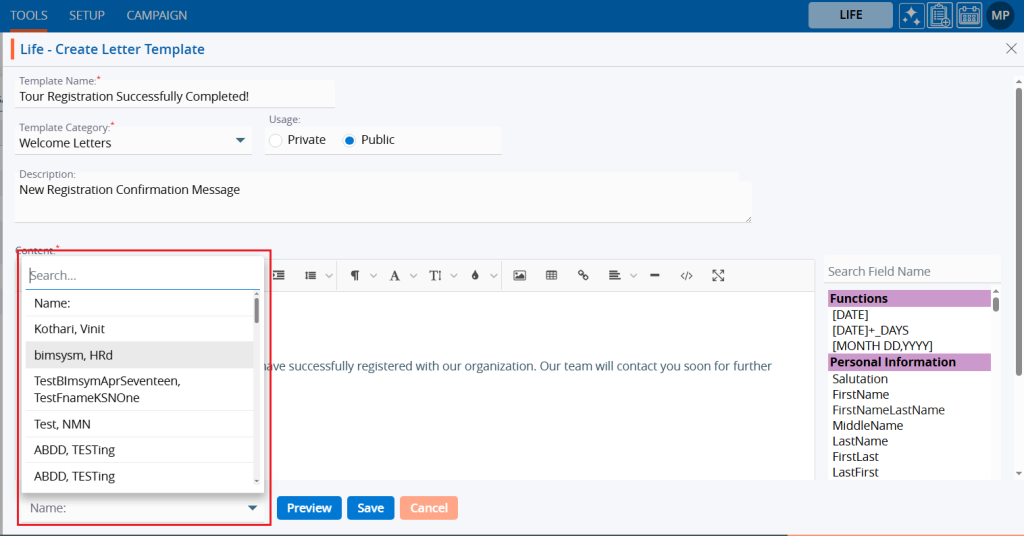
10. Select an associate’s name from the dropdown menu. Click to Expand

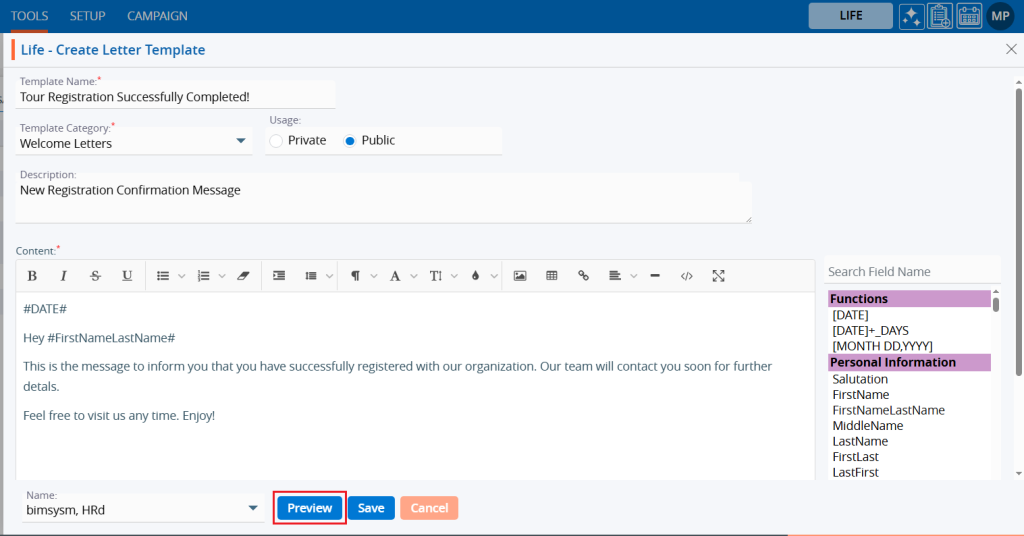
11. Click on the ‘Preview’ button. Click to Expand

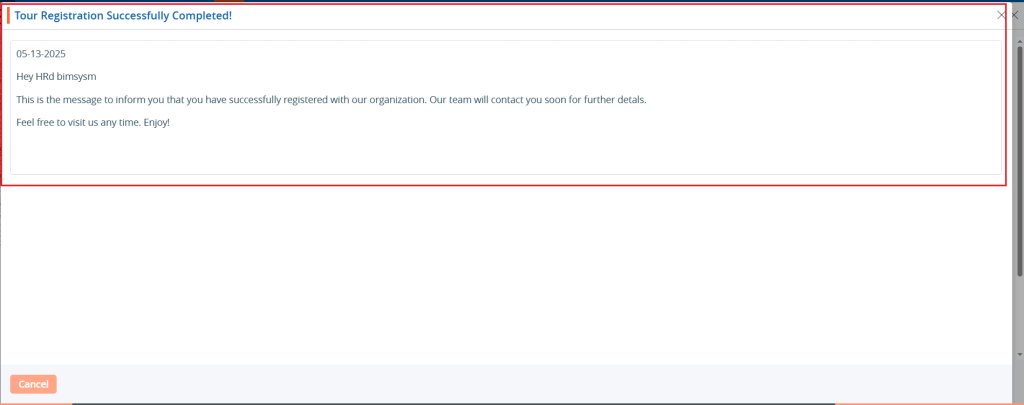
12. A pop-up window will open, displaying the template details in preview mode. Click the ‘Cancel’ button to close it. Click to Expand

13. Click the ‘Save’ button. Click to Expand

14. A confirmation message will appear, and the user will find the newly created template in the list. Click to Expand

15. Click the ‘Edit’ option to modify the created template. Click to Expand

16. A pop-up window will open, allowing the user to update details of the template. Click to Expand

17. Click the ‘Edit’ option to modify the created template. Click to Expand

18. A pop-up window will open, allowing the user to update any details related to the template. Click to Expand

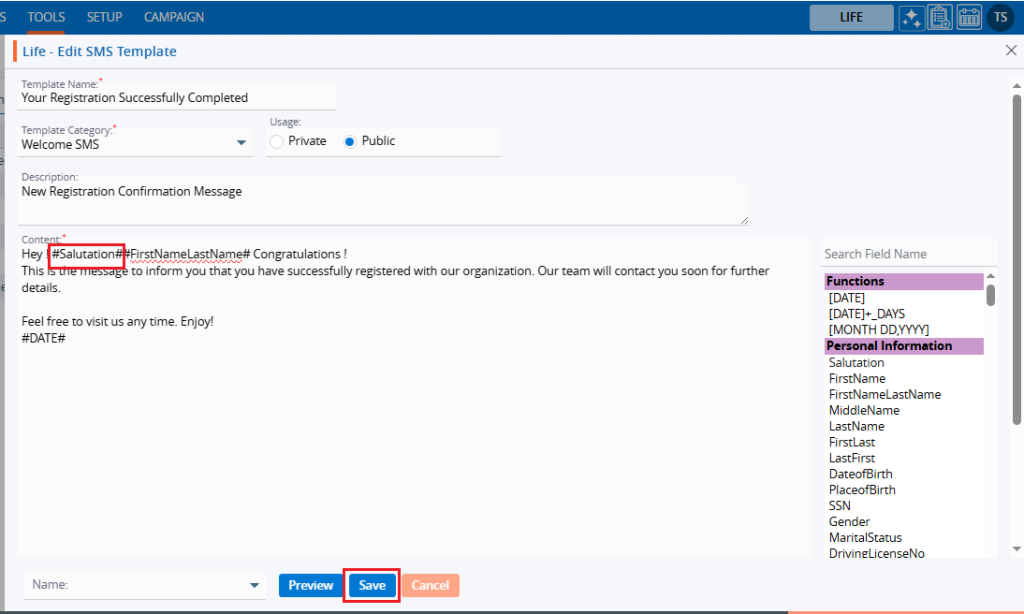
19. Update details to edit the template. For example, we have added ‘Salutation’. Click on ‘Save’ button. Click to Expand

20. A confirmation message will appear that the template has been updated, and the list will show the updated ‘Usage’ field value. Click to Expand

21. Select the ‘Delete’ option to remove the template from the list if it is no longer needed. Click to Expand

22. Select the ‘Delete’ option in the confirmation message to proceed with removing the template from the list. Click to Expand

23. After clicking on the Delete button, a confirmation message will appear, indicating that the template has been deleted and is no longer available in the list. Click to Expand

0
0

Template Creator > Email

Create templates to streamline and expedite email sending. These email templates can be used when sending any email from the system.

The following are the steps for creating email templates:

1. Navigate to the ‘TOOLS’ tab. The Tools tab will open with the Template Creator tab displayed by default.

2. Users will see the ‘Tools – Template Creator’ with four different tabs: Email, Letter, SMS, and WhatsApp.

3. The ‘Email’ tab opens by default in the Template Creator, displaying a list of existing email templates with details including Template Name, Category, Usage, Created By, Create Date and Action.

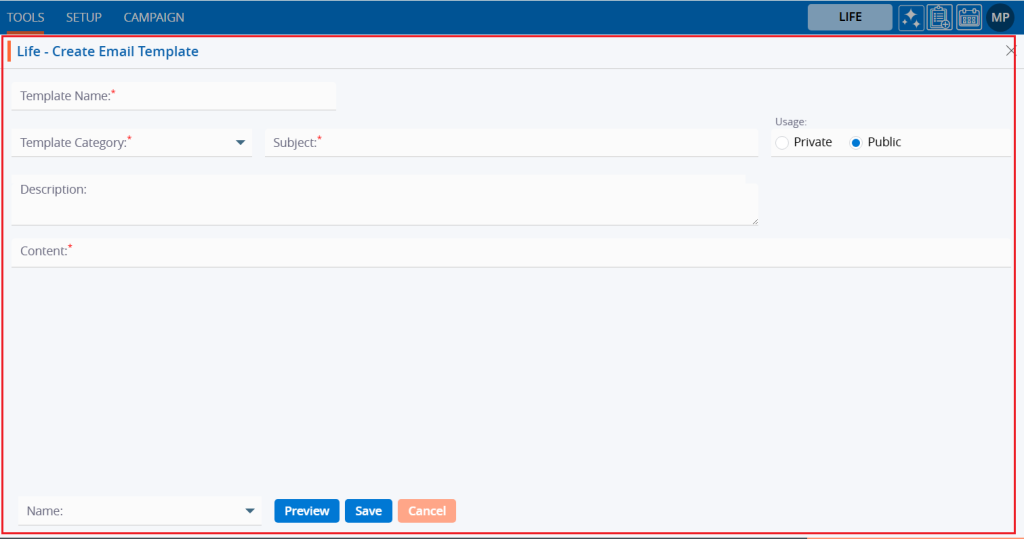
4. Click on the ‘Create Email Template’ icon to begin creating a new email template.

5. Click on the ‘Create Email Template’ icon to begin creating a new email template.

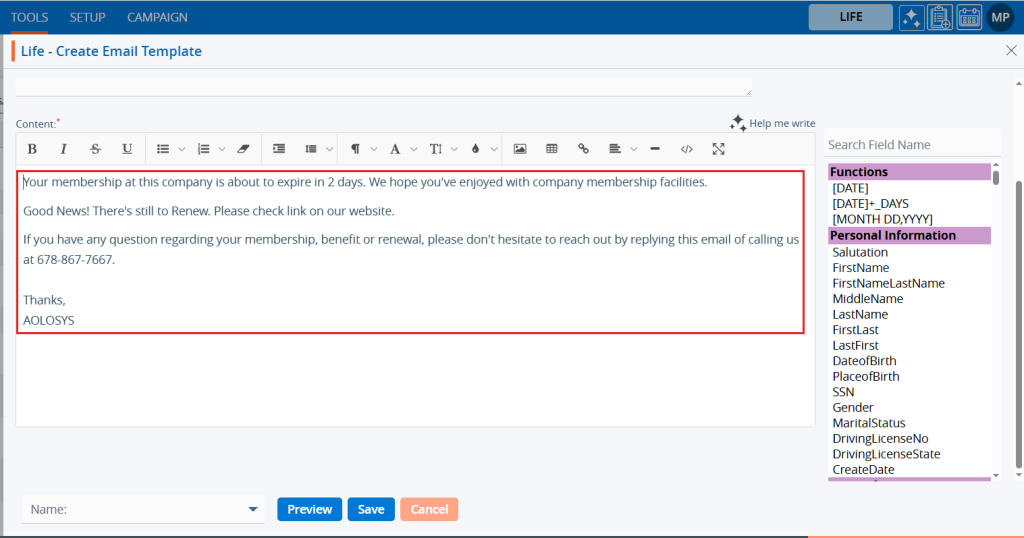
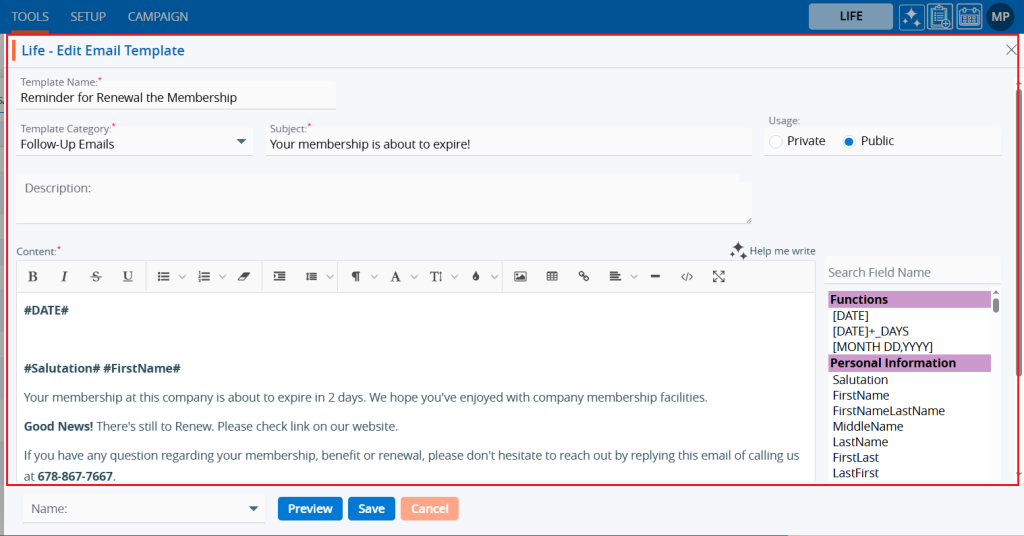
6. Fill in the fields. Fields with an asterisk are mandatory.

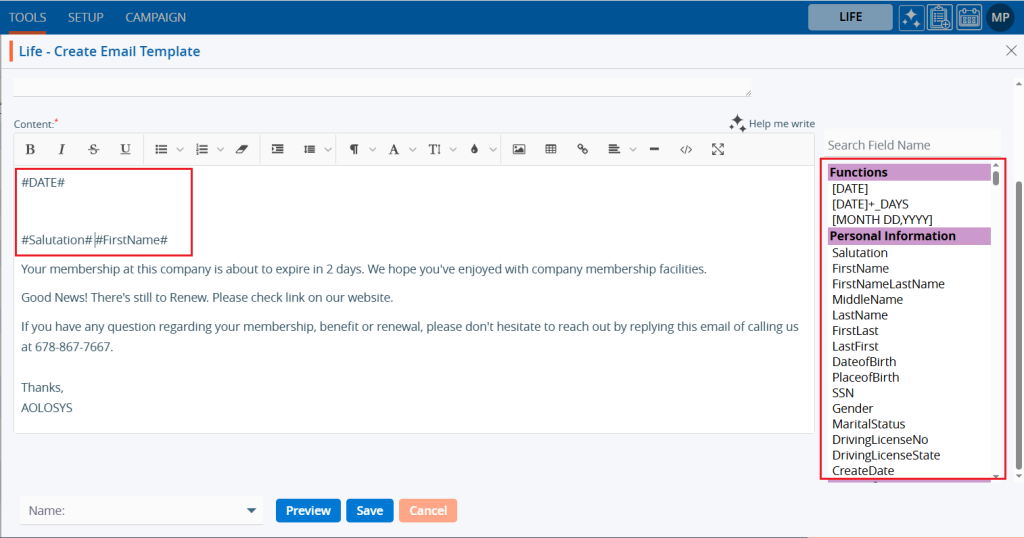
7. On the right-hand side, there is a list of fields that will fetch details for the selected user. Search for field names from the list to use in the templates. Double-clicking on the field will add them to the content. For example, users can include fields such as Date, Salutation, and FirstLast for mapping.

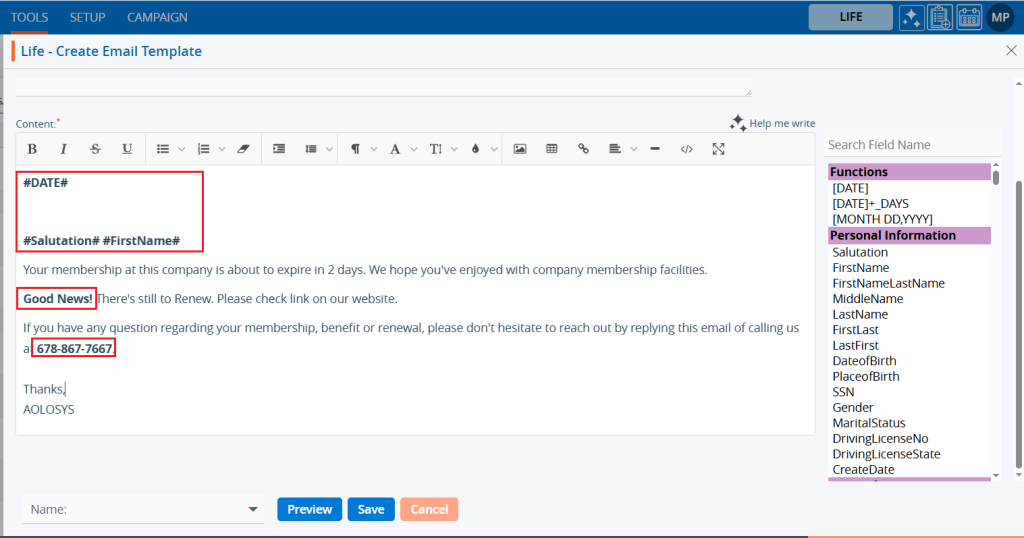
8. Users can apply formatting effects to specific text in the content editor, such as font styles, size, and headings. For example, use Bold for the Date, salutation, name fields, and the text ‘Good News!’ and phone number.

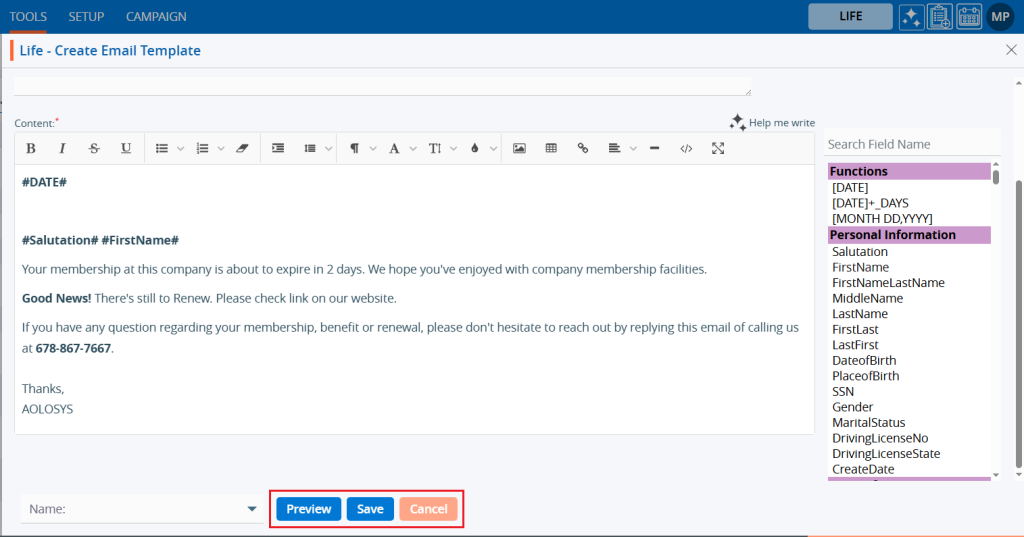
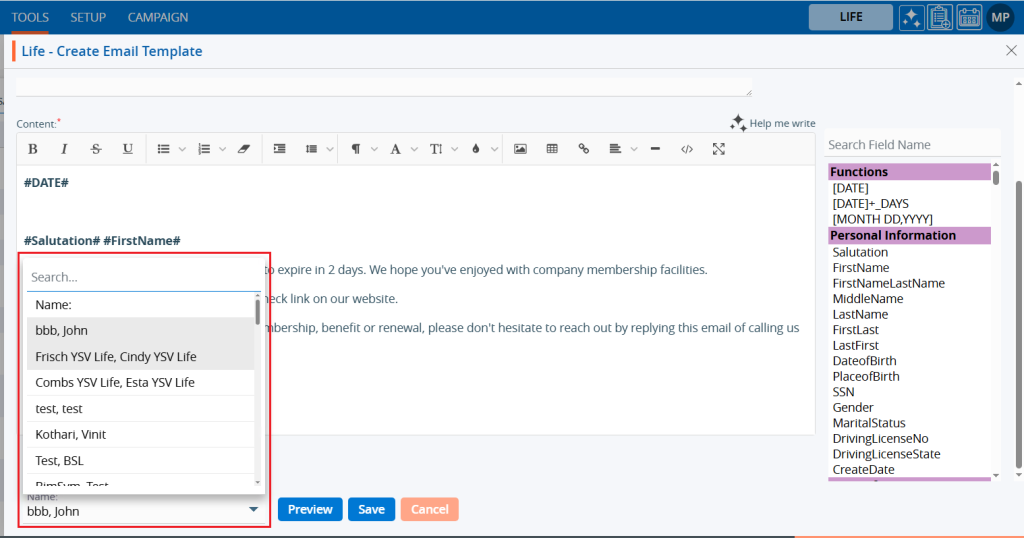
9. At the bottom, there is a dropdown menu with the names of the associates and three available buttons: Preview, Save, and Cancel.

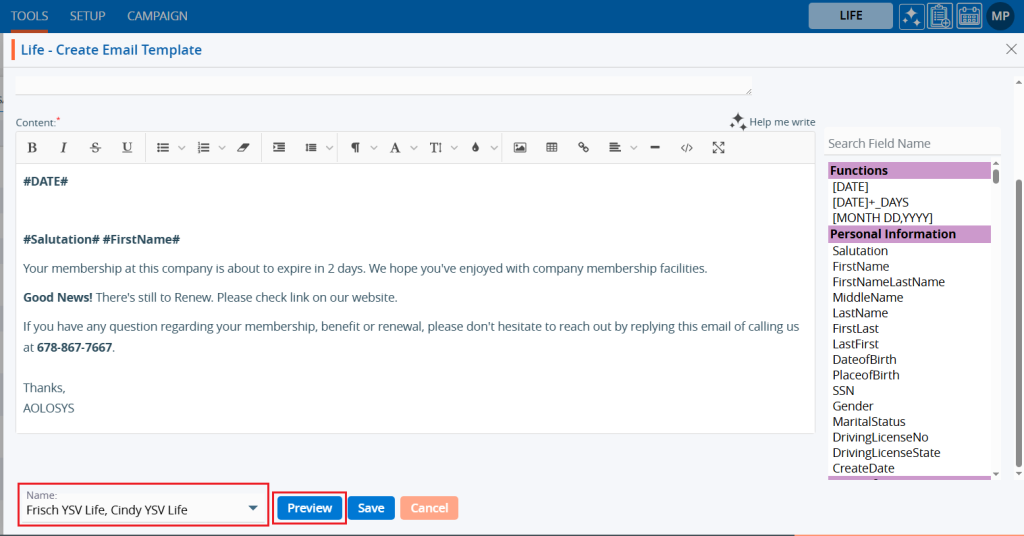
10. Select an associate’s name from the ‘Name’ dropdown menu.

11. Click the ‘Preview’ button.

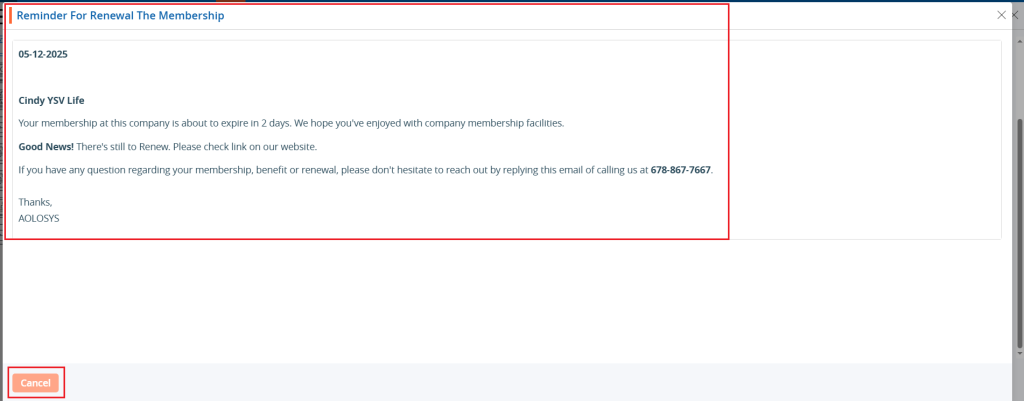
12. A pop-up window will open, showing the template details in preview mode. Click the ‘Cancel’ button to close it.

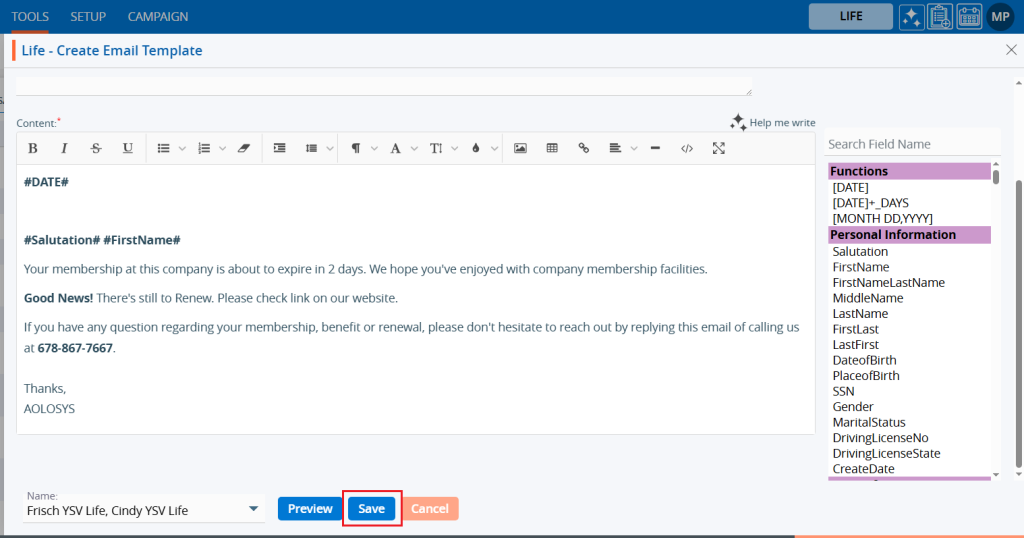
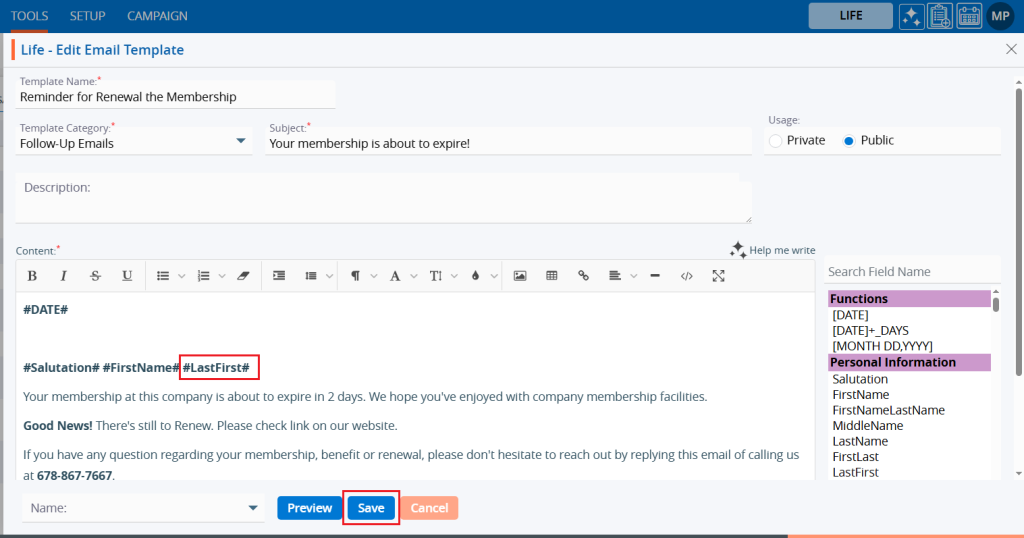
13. Click the ‘Save’ button.

14. A confirmation message will appear that the template is saved, and the user will find the newly created template and its details in the list.

15. Click on the ‘View’ icon to view the existing Template.

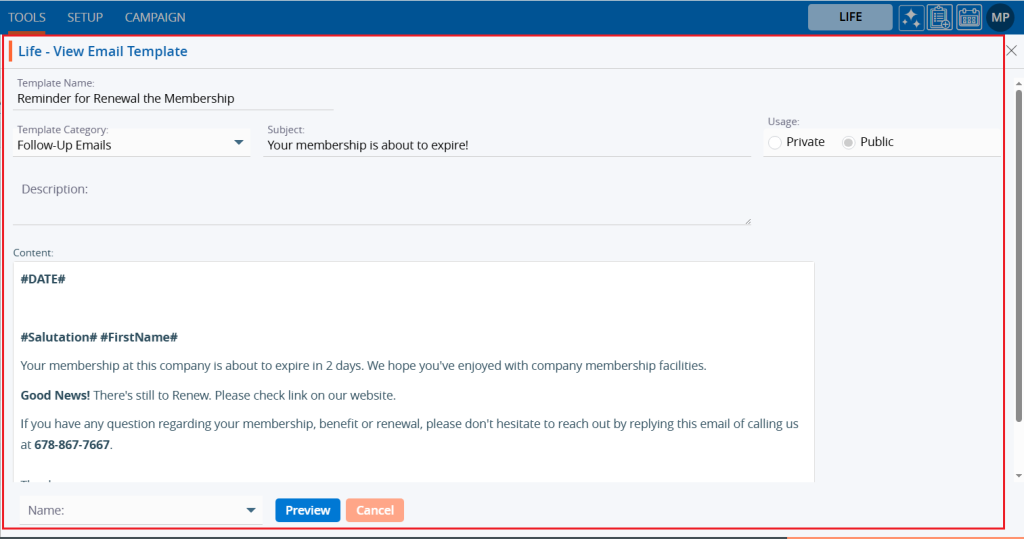
16. A pop-up window will open, where the user can view the details of the template in read-only.

17. Click the ‘Edit’ option to modify the created template.

18. A pop-up window will open, allowing the user to update details of the template.

19. For example, we have added ‘Last Name’. Click on the ‘Save’ button.

20. A confirmation message will appear showing Email Template updated successfully.

21. Select the ‘Delete’ option to remove the template from the list if it is no longer needed.

22. Select the ‘Delete’ option in the confirmation message to proceed with removing the template from the list.

23. After clicking on the Delete button, a confirmation message will appear, and the template is no longer available in the list.

0
0

Template Creator > WhatsApp

WhatsApp – The WhatsApp template creator streamlines and accelerates the process of sending WhatsApp messages using pre-designed templates. These templates can be easily accessed to send WhatsApp messages through the system.


The following are the steps for managing WhatsApp message template:

1. Navigate to the ‘TOOLS’ tab.

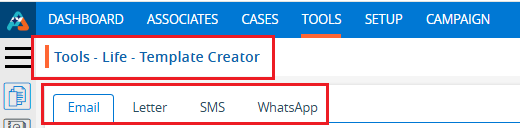
2. The Tools tab will open, displaying the ‘Tools – Life – Template Creator’ with four tabs: Email, Letter, SMS, and WhatsApp.

3. Click on the ‘WhatsApp’ tab, which will display a list of existing WhatsApp templates along with details such as Template Name, Category, Template ID, Language, Template Type, Approval Status, Usage, Created By, Create Date and Action.

4. Click on the ‘Create WhatsApp Template’ icon to begin creating a new WhatsApp template.

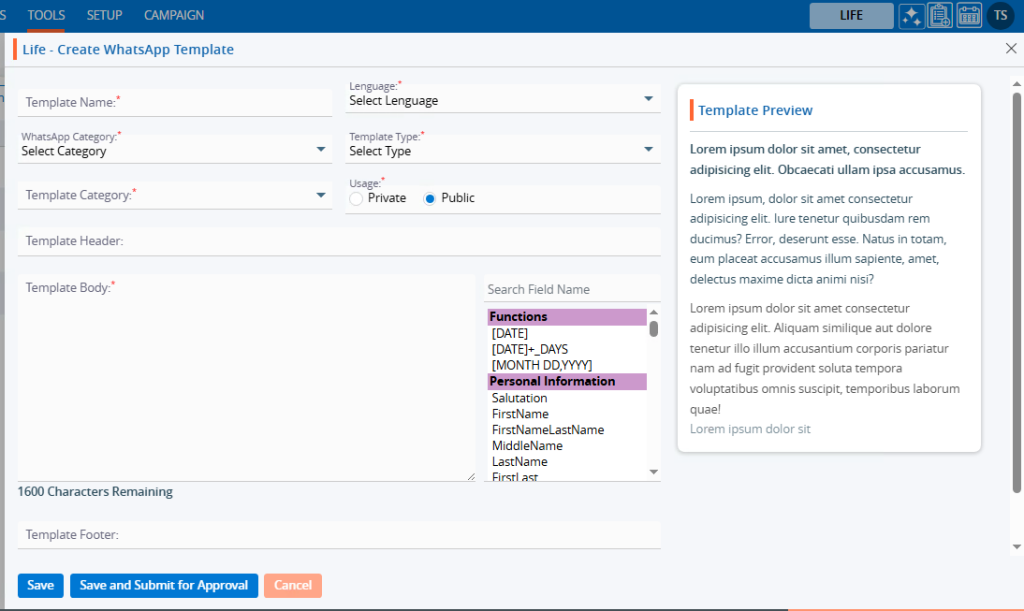
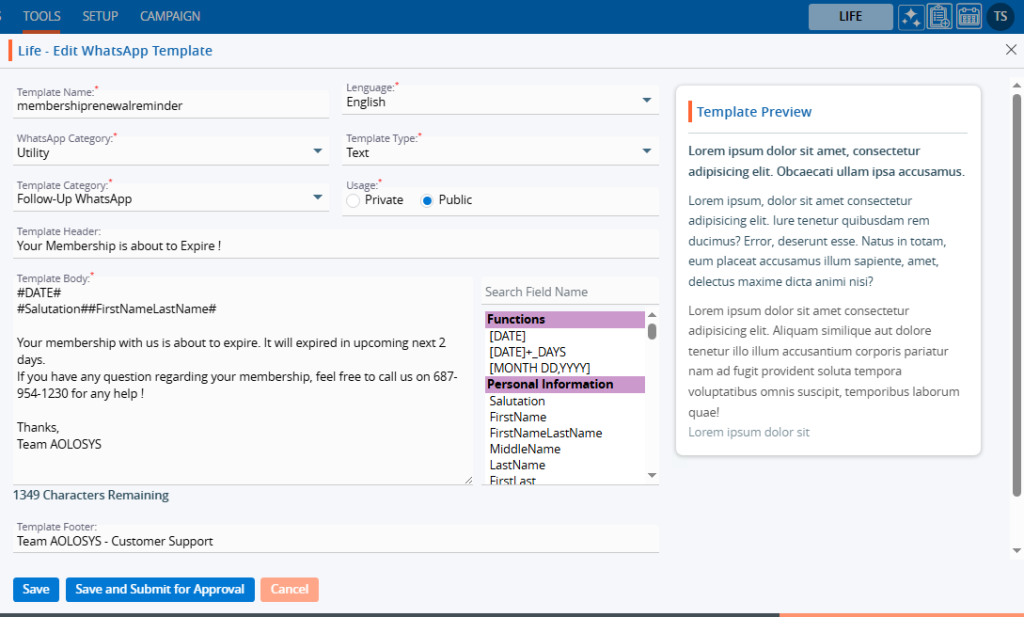
5. A pop-up window will appear with fields for Template Name, Language, WhatsApp Category, Template Type, Template Category, Usage (defaulted to ‘Public’), Template Header, Template Body and Template Footer. At the bottom, there will be options to Save, Save And Submit for Approval, and Cancel.
6. Fields marked with an asterisk (*) are mandatory.
7. The length of the Template Body is 1600 characters.

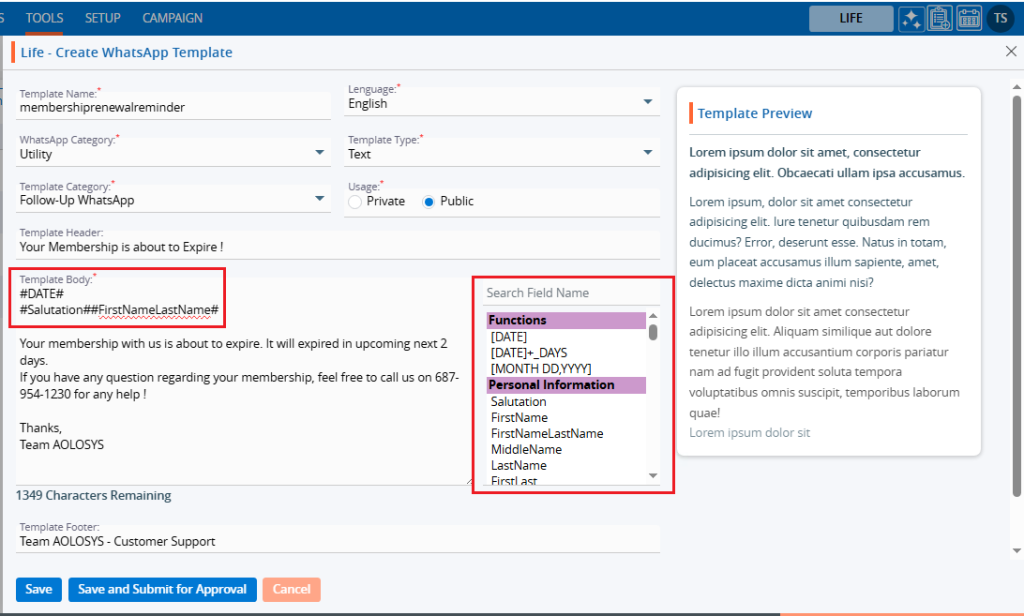
8. Fill in the fields.
9. On the right-hand side, there is a list of fields that will fetch details for the selected user.
10. Users can click on fields or search from the list to use in the template.
11. Double-clicking on the selected field will add them to the content area.
For example, users can include fields such as Date, Salutation, and FirstNameLastName.

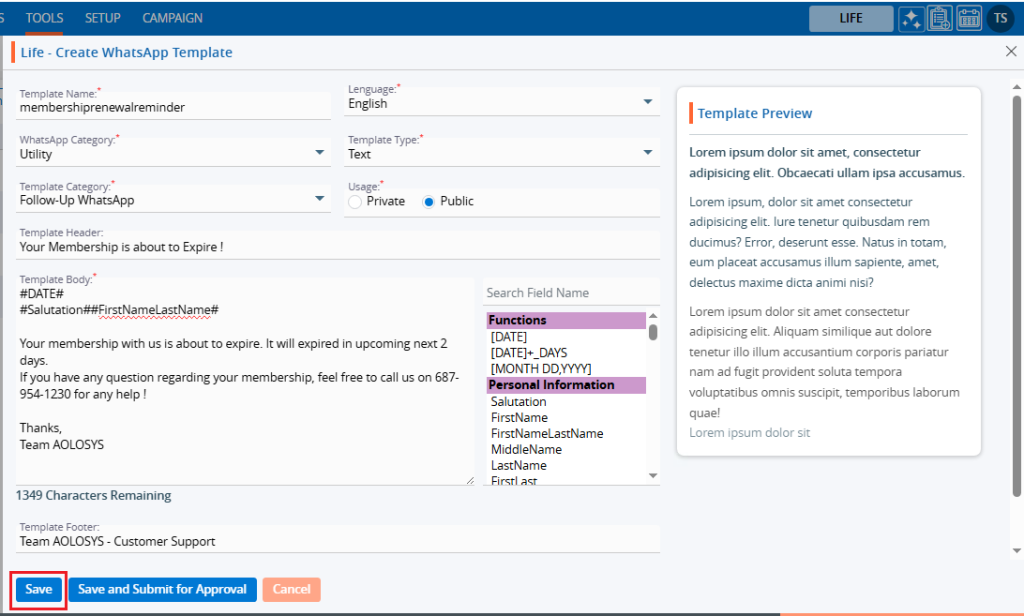
12. Click the ‘Save’ button to save the template.

13. A confirmation message will appear once the template is created, and the user will find the newly created template and its details in the list.

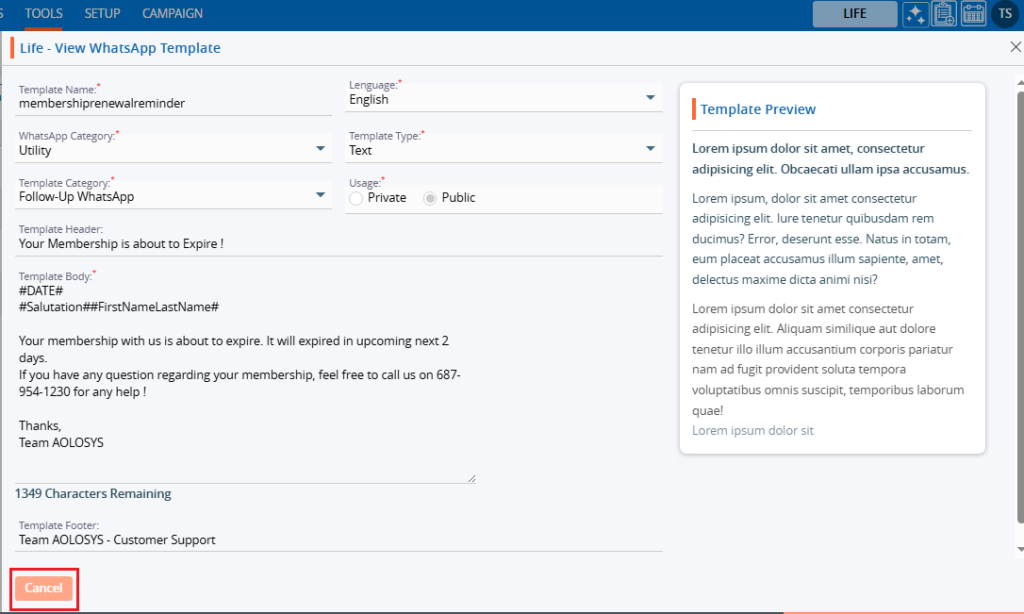
14. Click on the ‘View’ icon to view the existing Template.

15. A pop-up window will open, where the user can view the details of the template in read-only.

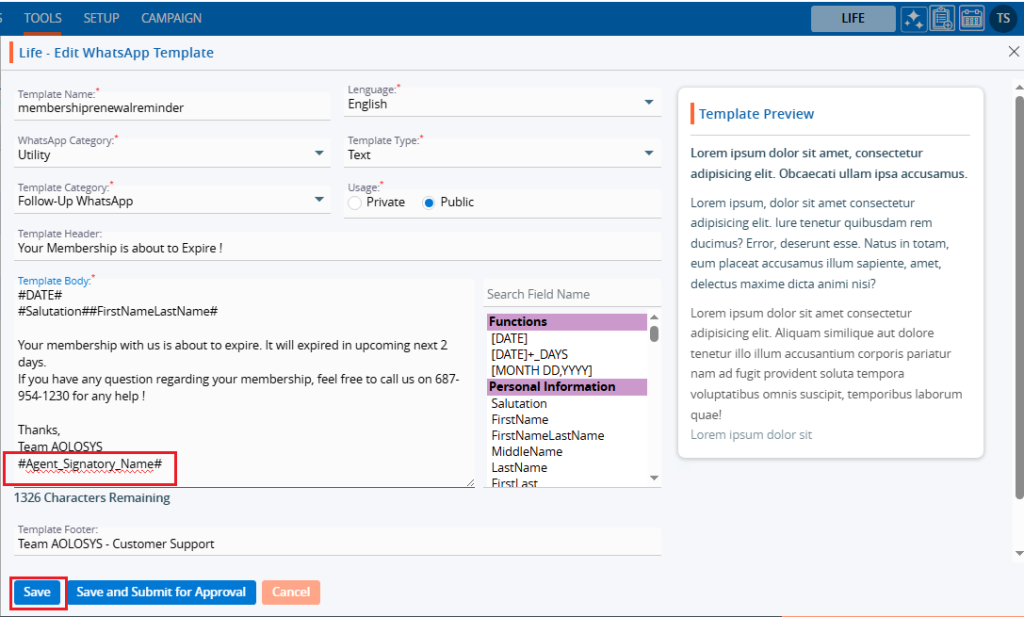
16. Click on the ‘Edit’ option to modify the template.

17. A pop-up window will appear, allowing the user to update details of the template.

18. After making the changes, click the ‘Save’ button.

19. A confirmation message will appear indicating that the template has been updated.

20. Select the ‘Delete’ option to remove the template from the list if it is no longer needed.

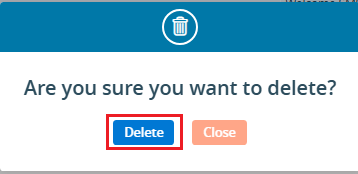
21. Click the ‘Delete’ option in the confirmation message to proceed with removing the template from the list

22. A confirmation message will appear, indicating that the template has been deleted and is no longer available.

0
0
Template Creator > SMS

SMS – SMS templates is used to simplify and speed up the process of sending messages. These templates can be utilized for any SMS sent through the system.

The following are the steps for creating SMS templates:

1. Navigate to the ‘TOOLS’ tab.

2. The Tools tab will open, displaying the ‘Tools – Life – Template Creator’ with four tabs: Email, Letter, SMS, and WhatsApp.

3. Click on the ‘SMS’ tab. A list of existing SMS templates will display details including Template Name, Category, Usage, Created By, Create Date and Action.

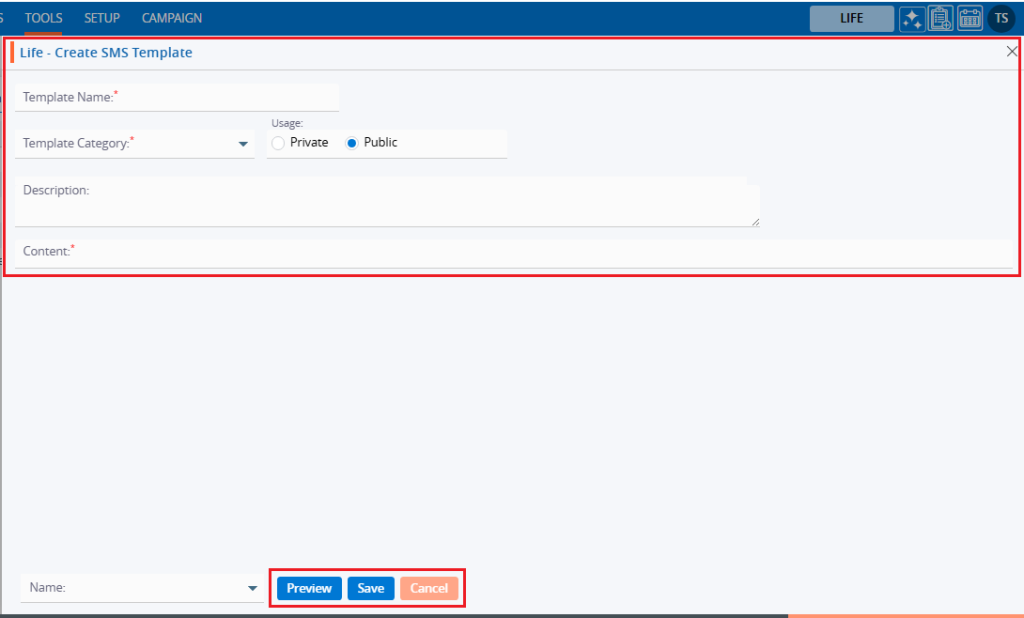
4. Click on the ‘Create SMS Template’ icon to begin creating a new SMS template.

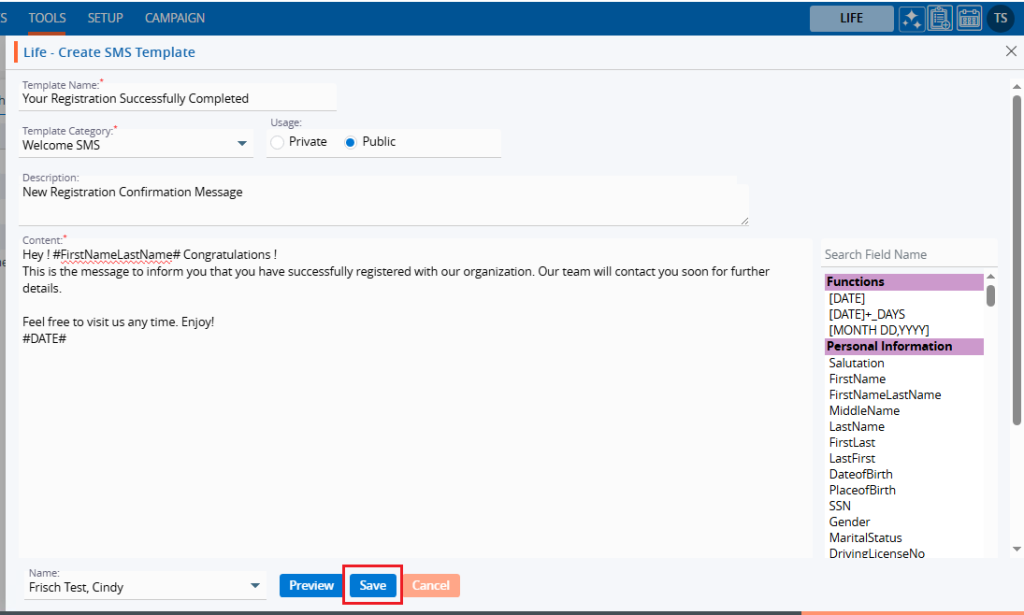
5. A pop-up window will open with fields for Template Name, Template Category, Usage (defaulted to ‘Public’), Description, and Content. At the bottom, there is an Associate Dropdown and Preview, Save, and Cancel options.
Fields marked with an asterisk (*) are mandatory.

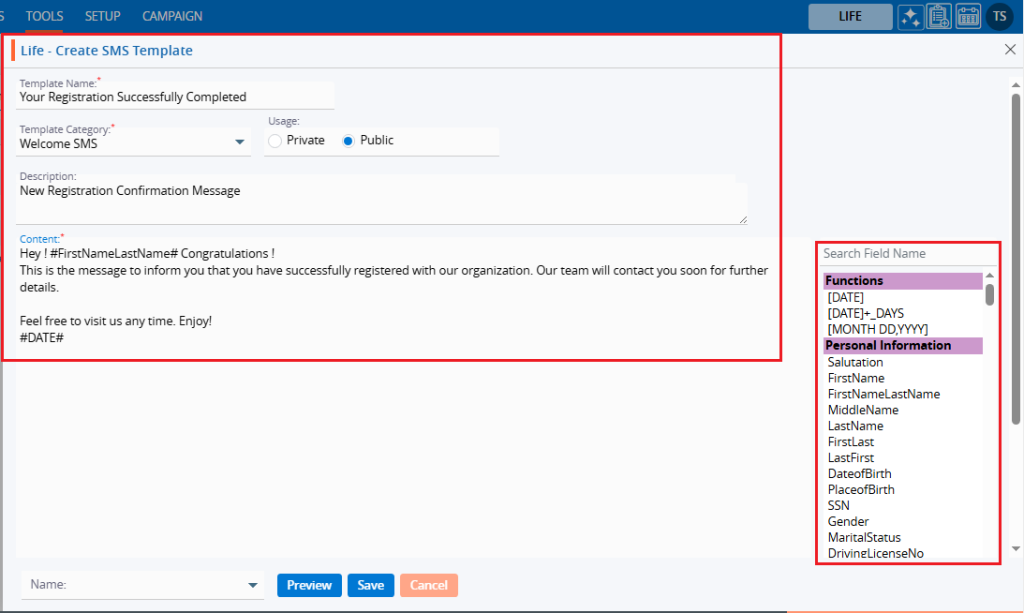
6. Fill in the fields to create an SMS message template. Also, on the right-hand side, there is a list of fields that will fetch details for the message. Search for field names to use in the templates. Double-clicking on the field will add it to the content area. For example, users can include fields such as FirstNameLastName and Date.

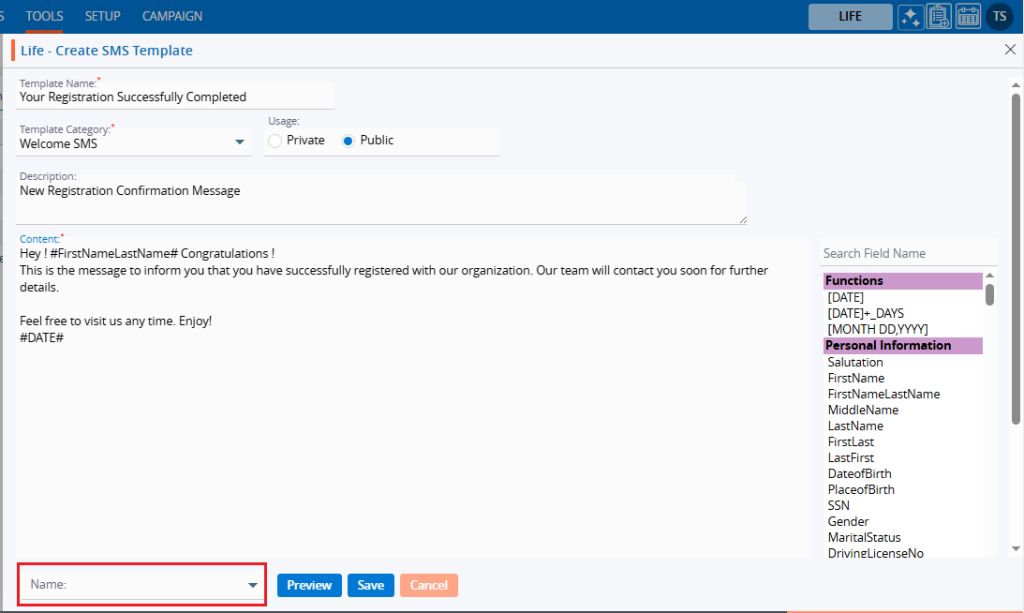
7. At the bottom, there is a dropdown. Click on the dropdown to open it.

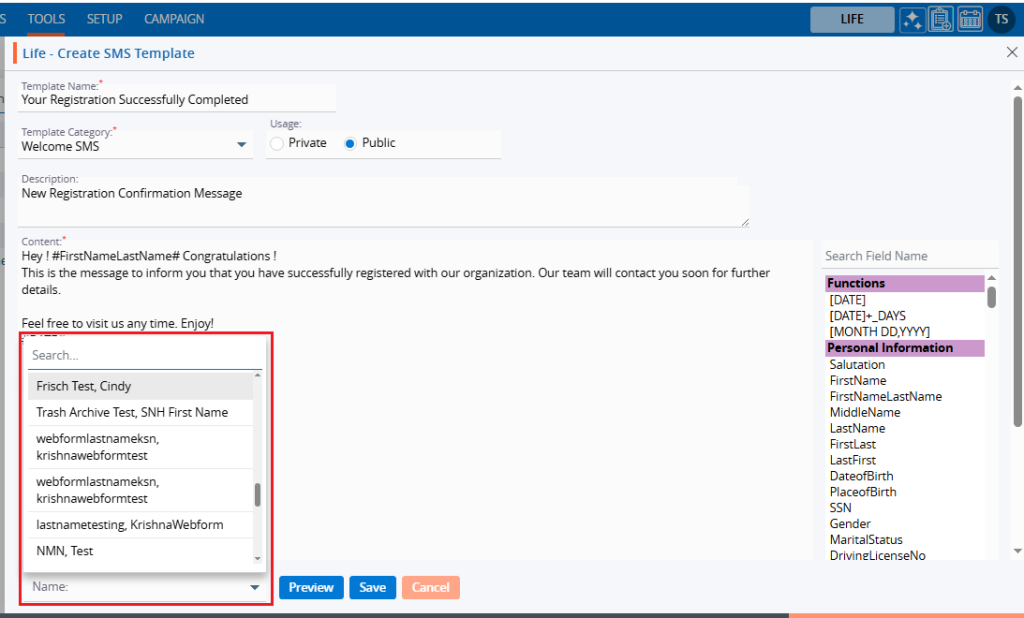
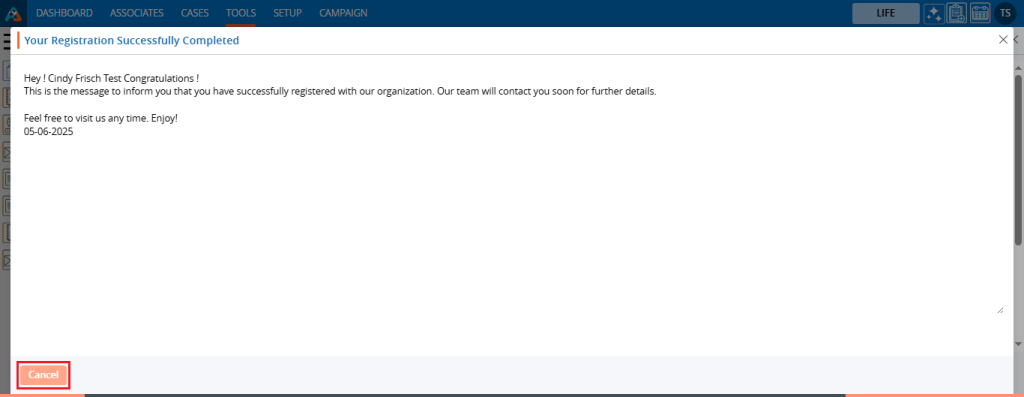
8. Select the associate from the list of associates from the dropdown and click the ‘Preview’ button to view a preview of the template.

9. A pop-up window will appear, showing the template details in preview mode. Click the ‘Cancel’ button to close the window.

10. Click the ‘Save’ button to save the template.

11. A confirmation message will appear and the template is created.  The user will find the newly created template and its details in the list.

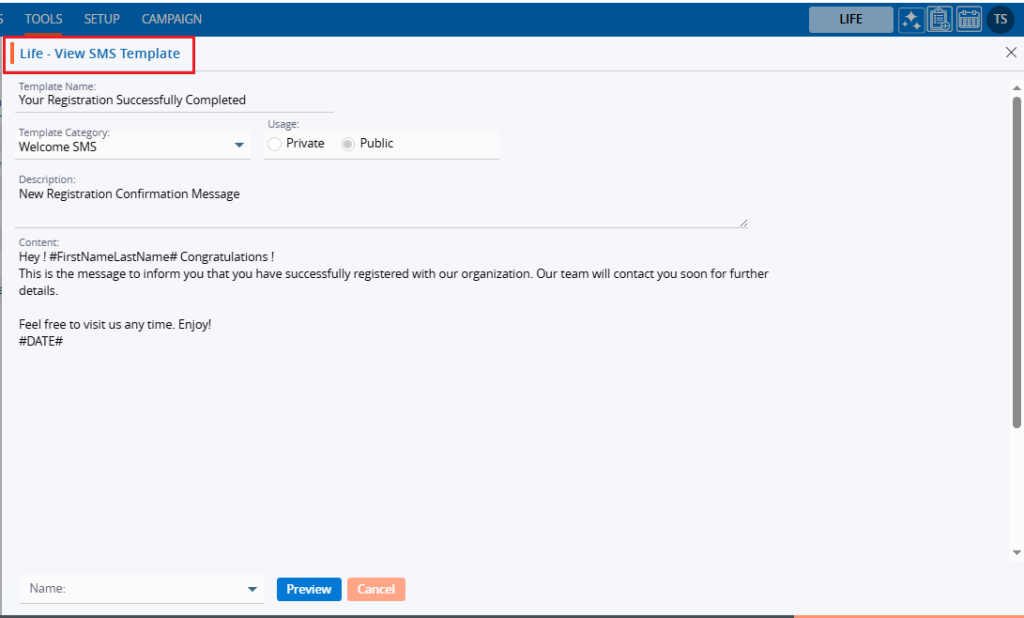
12. Click on the ‘View’ icon to view the existing Template.

13. A pop-up window will open, where the user can view the details of the template in read-only.

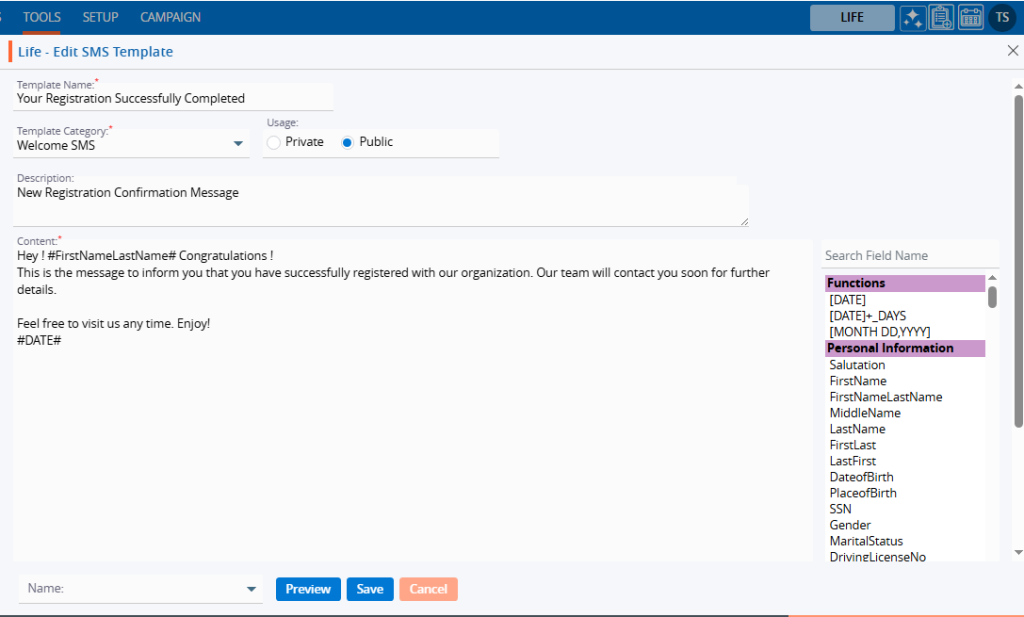
14. Click on the ‘Edit’ option to modify the template.

15. A pop-up window will open, allowing the user to update any details related to the template.

16. Update the details to modify the template. For example, add the ‘Salutation’ field. After making changes, click the ‘Save’ button.

17. A confirmation message will appear indicating that the template has been updated.

18. Select the ‘Delete’ option to remove the template from the list if it is no longer needed.

19. Click the ‘Delete’ option in the confirmation message to proceed with removing the template from the list.

20. A confirmation message will appear, indicating that the template has been deleted and is no longer available in the list.

0

0