Home   /   Setup   /   Quick Profile

Custom

The Custom tab is used to view fields and can be configured through SETUP > Quick Profile > Custom. The system allows users to add or edit the fields in the Custom view.

The following are the steps for managing the Custom view:

1. Navigate to ‘SETUP’ and click the ‘Custom’ tab.

2. After clicking on ‘Custom’ the tab will open, displaying the default groups and fields which are loaded by Admin/Upper Level. The user cannot edit these fields but can add a new group and fields within it.

3. The ‘Custom’ fields will be seen under the ‘Quick Profile’ in Cases.

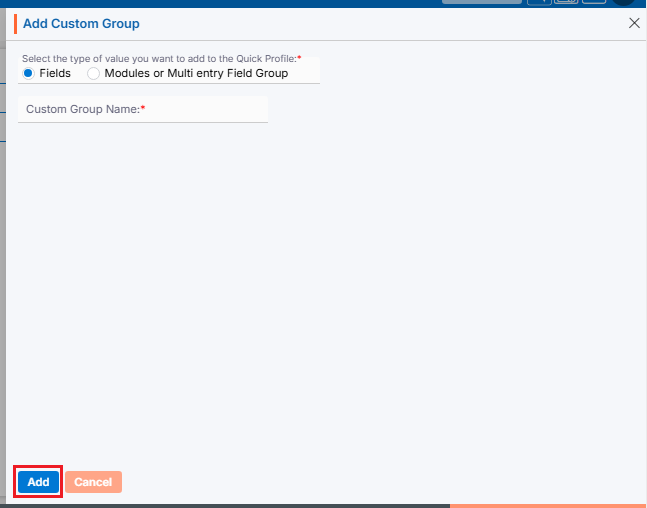
4. By using the ‘Add Custom Group’, the user can add a group. Click on the ‘Add Custom Group’.

5. After clicking the ‘Add Custom Group’ icon, a pop-up will open.

6. Select option ‘Fields.’ Add ‘Custom Group Name’ and click on the ‘Save’ button.

7. There will be a confirmation message ‘Custom group created successfully’ and the newly created custom group will display in the list.

8. Click on the down arrow to open the options.

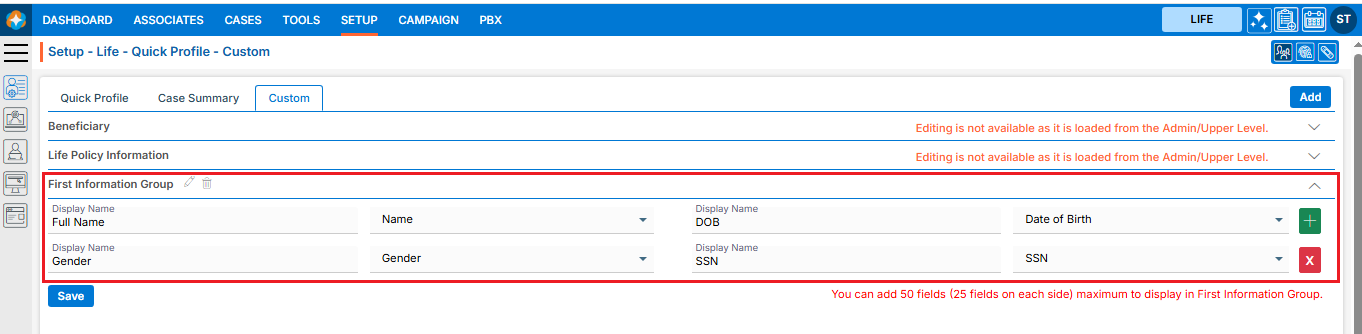
9. The user can add fields as required.

10. After adding fields, the custom group will show like this:

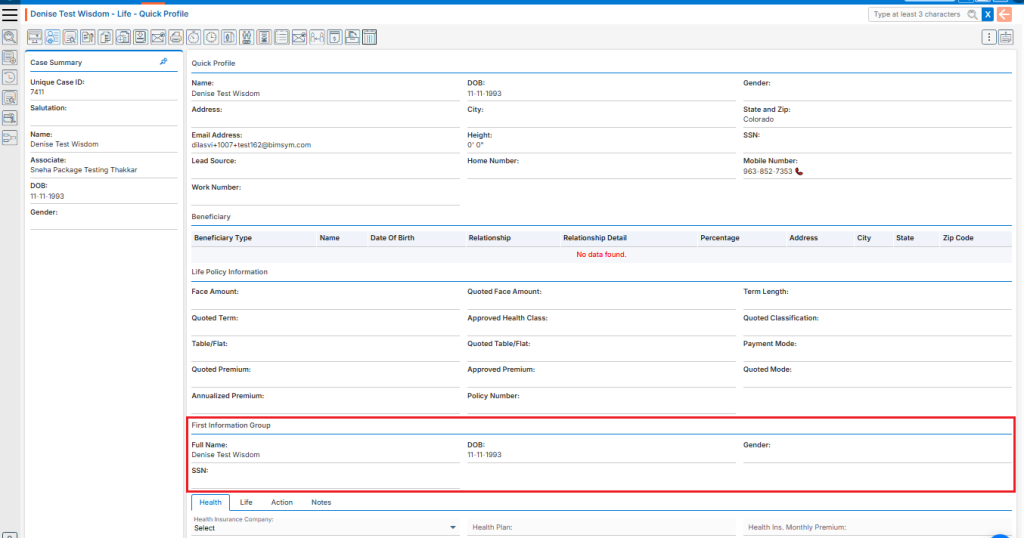
11. Go to the ‘Cases’ tab and open a case. Select the ‘Quick Profile’ and the user can check the created custom group and fields are there.

12. The user can edit the information using the Edit icon.

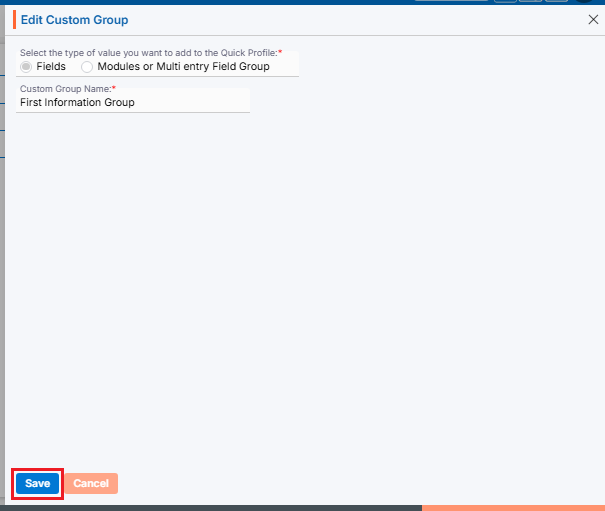
13. The custom group will open in edit mode.

14. The user can make any required changes and click the Save button.

15. There will be a confirmation message ‘Custom group updated successfully.’

16. The user can remove the custom group using the ‘Delete’ icon.

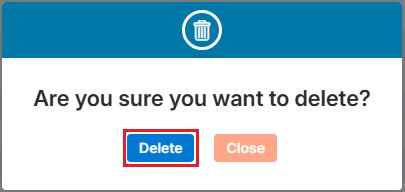
17. There will be a confirmation message asking ‘Are you sure you want to delete?’ Select the ‘Delete’ button.

18. The custom group will be removed from the list and there will be a confirmation message ‘Custom group removed successfully.’

19. To add multiple entry fields, the user can add ‘Modules or Multi entry Field Group’.

20. Select ‘Module or Multi entry Field Group’, Add the information for the group and Click on the Save button.

21. The Module or Multi entry Module or Multi entry Field Group will be saved in the list.

22. Go to the Cases tab and open a case. Open ‘Quick Profile’ and the user can check the created Module or Multi entry Field Group and field there.

23. To add the information in the custom group, go to the Information > Custom > Beneficiary tab.

0
0

Quick Profile > Associate Quick Search

The Associate Quick Search Setup feature allows users to configure which Associate fields are searched when specific characters are entered in the Quick Search bar. Users can select up to 10 fields and prioritize them to improve search efficiency.

Setup Associate Quick Search

  1. Sign in to AgentFront CRM.
  2. From the top menu, choose Setup.
  3. In the left-side panel, select System Setup.
  4. Under System Setup, click Quick Search.
    • Note: The user can also access this page by typing Quick Search in the Enter Text to Search bar.
  5. Click on Associate Quick Search. (By default, Case Quick Search page will open.)

Configure Quick Search Fields:

  1. Click the Quick Search option to open the configuration window.
  2. When clicking on Quick Search, Change Associate Quick Search window will open.
  3. Click the drop-down arrow to view the available fields or use Enter Field Name to Search to quickly find a specific field.
  4. Click the drop-down arrow next to Personal Information to expand the list.
  5. Fields displayed in the list are selected by default.
  6. Select or deselect fields to configure which Personal Information fields are included in Associate Quick Search.
  7. Repeat the same process to select fields from other information categories, if required.
  8. The system allows the selection of a maximum of 10 fields.
  9. After selecting the required fields, click Save.
  10. Updated fields will now be displayed in the Associate Quick Search list.
  11. The ‘Set to Default’ button will now appear, allowing users to restore default settings if needed.

Use Associate Quick Search

  1. Navigate to the ASSOCIATE tab.
  2. Click the Quick Search option.
  3. Enter at least 3 characters in the search box. Here, we have entered ‘Ala’ in the quick search box.
  4. Click the Search icon to view results.
  5. The search results will display a list of associates whose state starts with ‘Ala’.

Reset to Default Settings

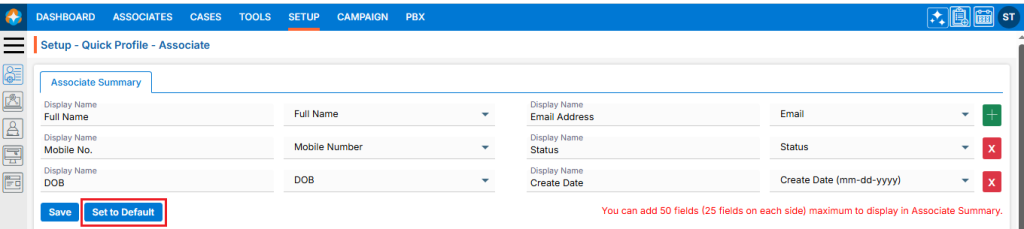
  1. By clicking Set to Default, the settings will be restored to their default values.
  2. Once the Associate Quick Search settings are reset, the search will operate using the default field preferences defined in System Setup.

Re-arrange Field Priority

  1. Fields can be rearranged () to set their priority in the search results.
  2. Hover over the Re-arrange () icon at the beginning of a field name.
  3. Select and drag the Re-arrange () iconto move up or down the field to the desired position, then drop it to save the new order.
0
0

Case Summary

A Case Summary Fields under a quick profile typically refers to the key fields or sections in a case summary that capture important information about a case. These fields serve the purpose of providing a quick, organized summary of the case for easy reference.

Case Summary Setup

  1. Sign in to AgentFront CRM
  2. From the top menu, choose SETUP
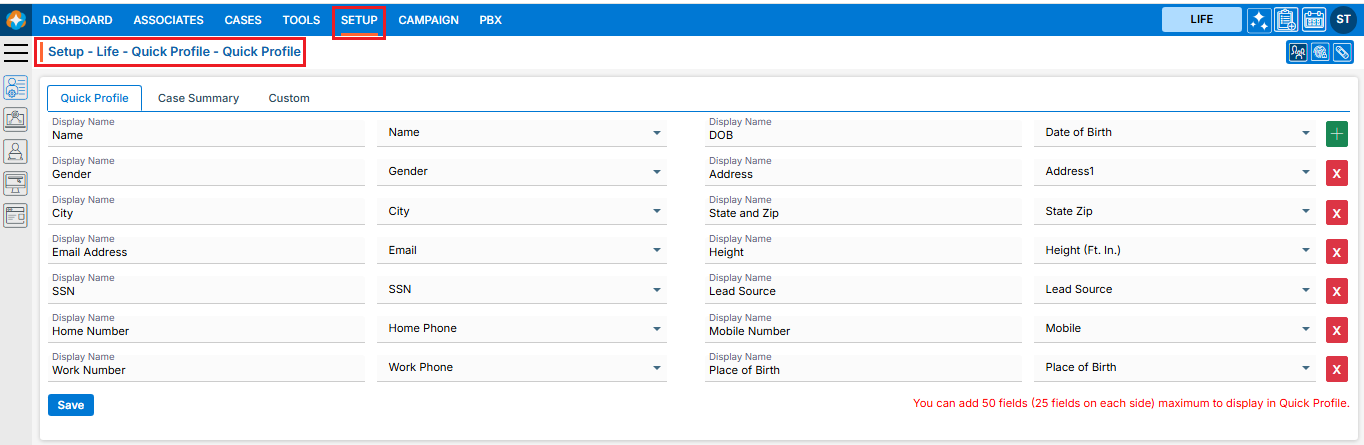
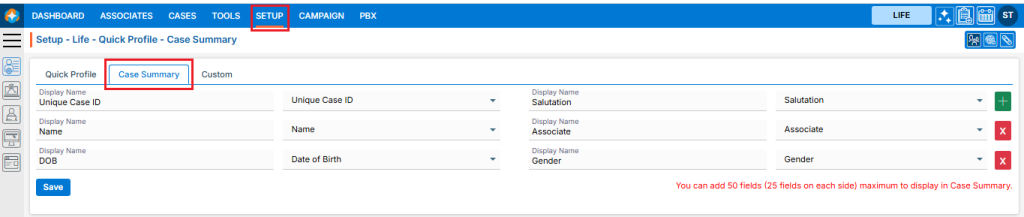
  3. Setup > Quick Profile > Cases Quick Profile setup page will open by default
  4. Click on Case Summary
  5. This page will display the default Case’s Case Summary setup, including the field display name and the selected field from the dropdown
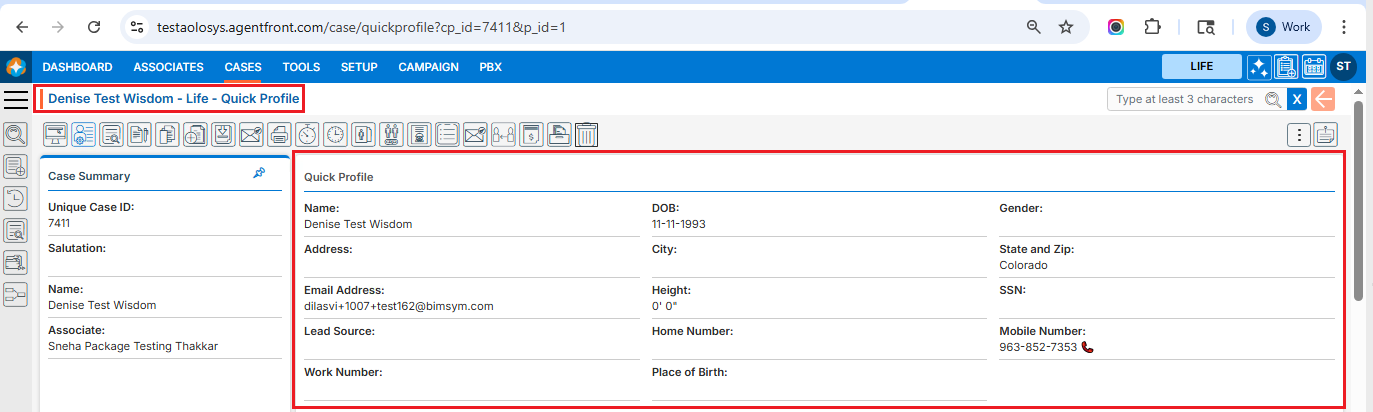
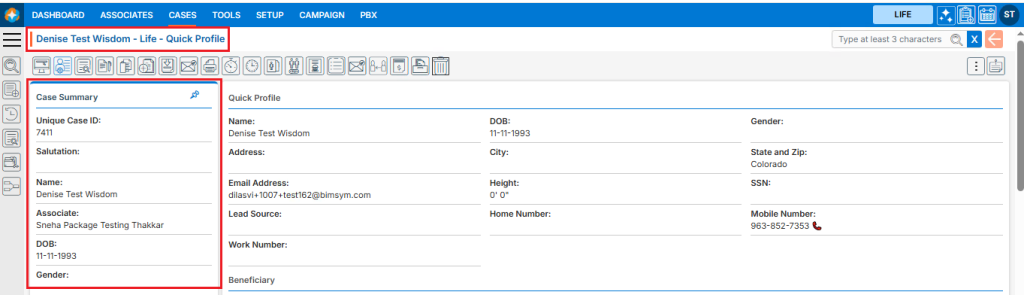
  6. This Case Summary setup will be reflected in CASES > Individual Case > Left Side of the page
  7. Users can add a new field by using the (+) sign, which is displayed in green
  8. Users can remove the existing field by using the (x) sign, which is displayed in red color
  9. Users can also edit the existing field(s) that have already been set up
  10. Once the add/edit action has been taken, click on ‘Save
  11. This updated case summary setup will be reflected in CASES > Individual Case > Case Summary

Restore Case Summary Setup

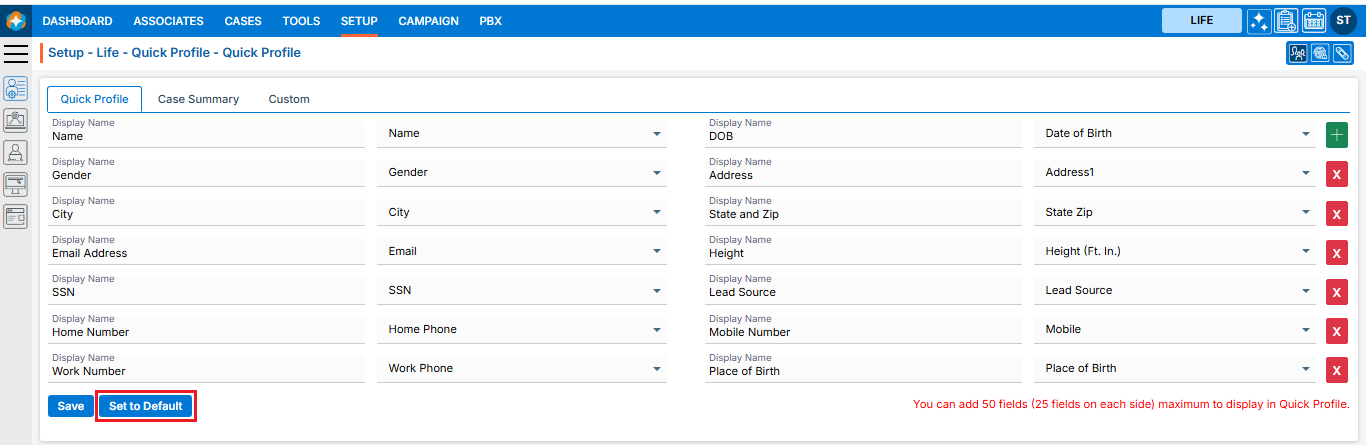
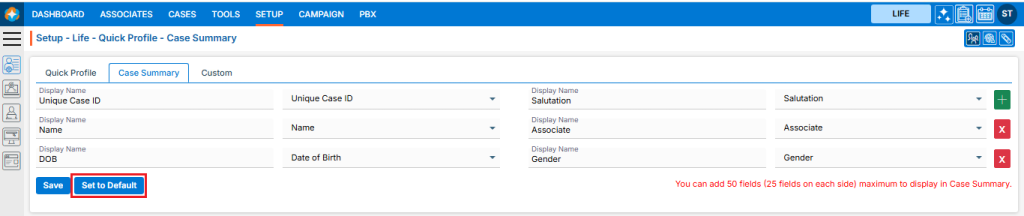
  1. The ‘Set to Default‘ option will restore the default case summary setup and will be reflected in CASES > Individual Case > Case Summary

0
0