 - Knowledge Base
 Add cases refers to the process of entering new records into the system. This process ensures that all required information is accurately captured, properly validated, and securely stored.
- Sign in to AgentFront CRM.
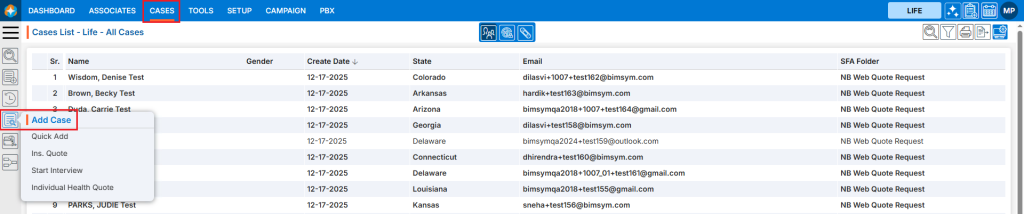
- From the top menu, select CASES.
- In the left-side panel, click Add Case to view all available forms for creating a new case.
- Select an option such as Start Interview to begin the process of creating a new case.
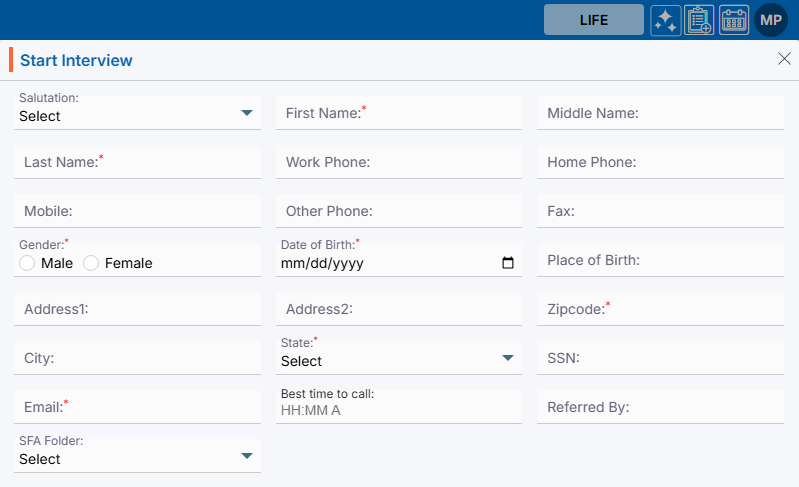
- A new pop-up window will open, displaying a form that must be completed to create the case.
- Some fields are mandatory and must be filled in, such as First Name and Last Name.
- Certain fields provide drop-down menus, requiring the user to select predefined options, such as Salutation and State.
- The Date of Birth field includes a calendar picker, enabling the user to select the date easily.
- All remaining fields provide standard text boxes, where the user can manually enter the required information.
- All remaining fields provide standard text boxes, where the user can manually enter the required information.
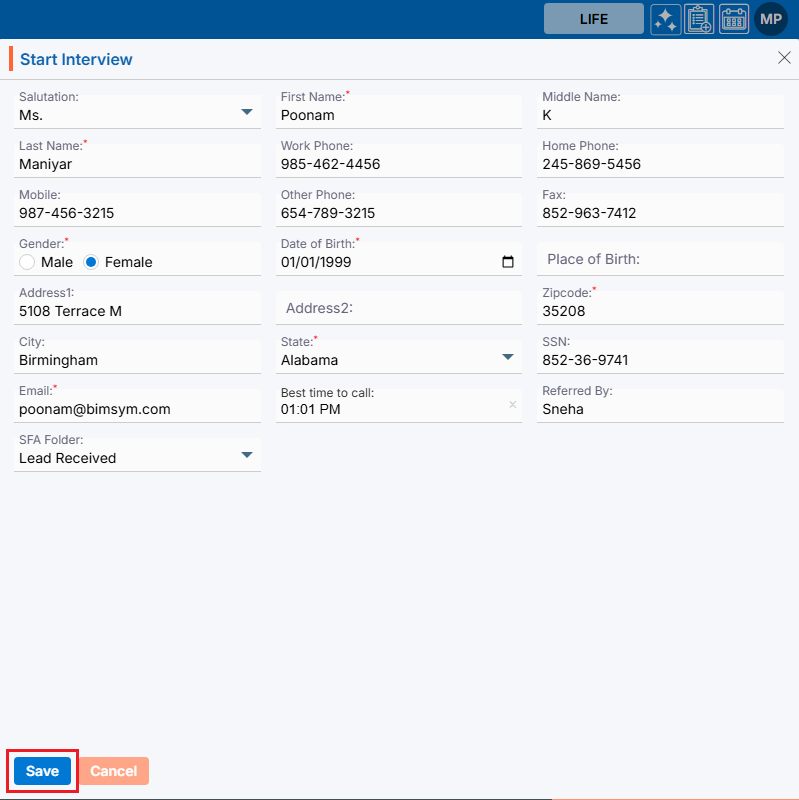
- Once the information is saved successfully, the case will be securely stored in the system and will appear in the Cases List and click on it to open the case details for review, updates, or further actions as needed.

 0
0
 0
0